
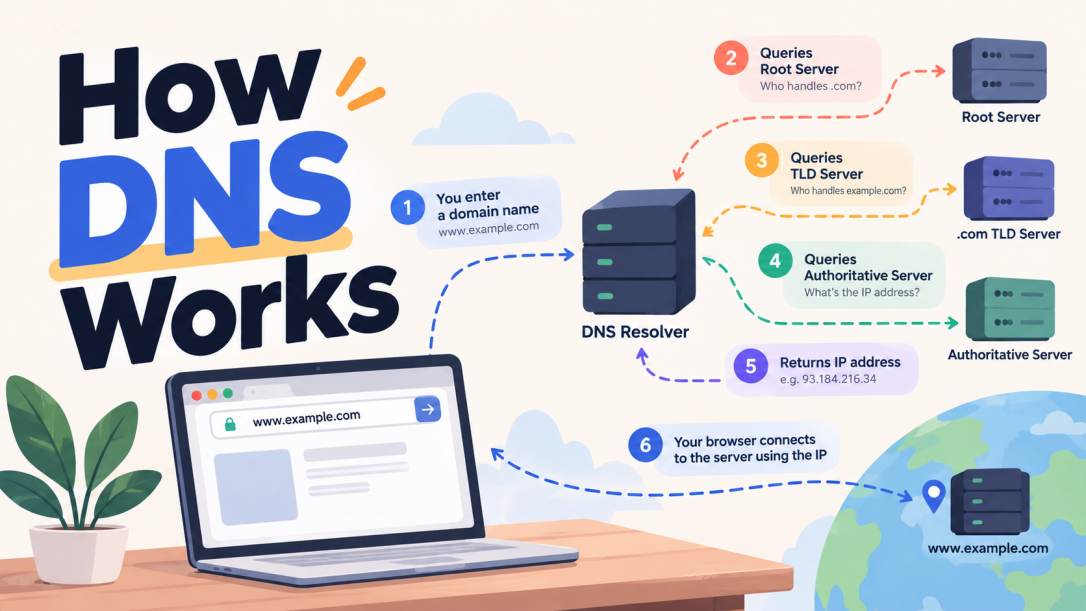
You type github.com into your browser and press Enter. The page loads in under a second. But between that keypress and the first pixel appearing on your screen, something extraordinary happens that most people never think about. A system called DNS silently translates that human-readable name into a machine address, traverses a global hierarchy of servers, and returns an answer before you even notice.
This article explains how DNS works from browser to server, including the full lookup flow, the recursive resolver chain, and the difference between recursive and iterative queries.
What is DNS?
DNS stands for Domain Name System. At its core, it is a global, distributed database that translates domain names (like google.com) into IP addresses (like 142.250.80.46).
Why does this translation need to exist at all? Because computers on the internet communicate using IP addresses, not human-readable names. An IP address is the actual "location" of a server on the internet. But remembering 142.250.80.46 every time you want to visit Google is not realistic for anyone.
So DNS acts as the internet's address book. You look up a name, and it returns the corresponding address.
Think of DNS like the contacts app on your phone. When you tap "Mom," your phone finds her phone number and dials it. You don't think about the number at all. DNS does the same thing: you type a name, it finds the corresponding IP address, and your browser connects to it.
The Problem DNS Was Built to Solve
DNS was not always here. In the early days of the internet (ARPANET), there was a single text file called HOSTS.TXT that listed every computer on the network alongside its address. This file was maintained by hand at the Stanford Research Institute, and every connected computer would periodically download it.
When the network had a few hundred machines, this worked fine. But as the internet grew, the problems became serious:
- Scale: Thousands of new machines were being added constantly. One text file could not keep up.
- Inconsistency: Different computers downloaded the file at different times, so they had different data.
- Single point of failure: One file, one server, one catastrophic bottleneck for the entire network.
- No organisation: All names were flat. There was no concept of ownership or hierarchy.
In 1983, Paul Mockapetris designed DNS to replace this system. Instead of one flat file, DNS is a distributed, hierarchical, fault-tolerant database spanning thousands of servers across the globe.
The Domain Name Hierarchy
Domain names have a tree structure, and you read them from right to left.
Take www.github.com. (the trailing dot is almost always hidden, but it is always there):
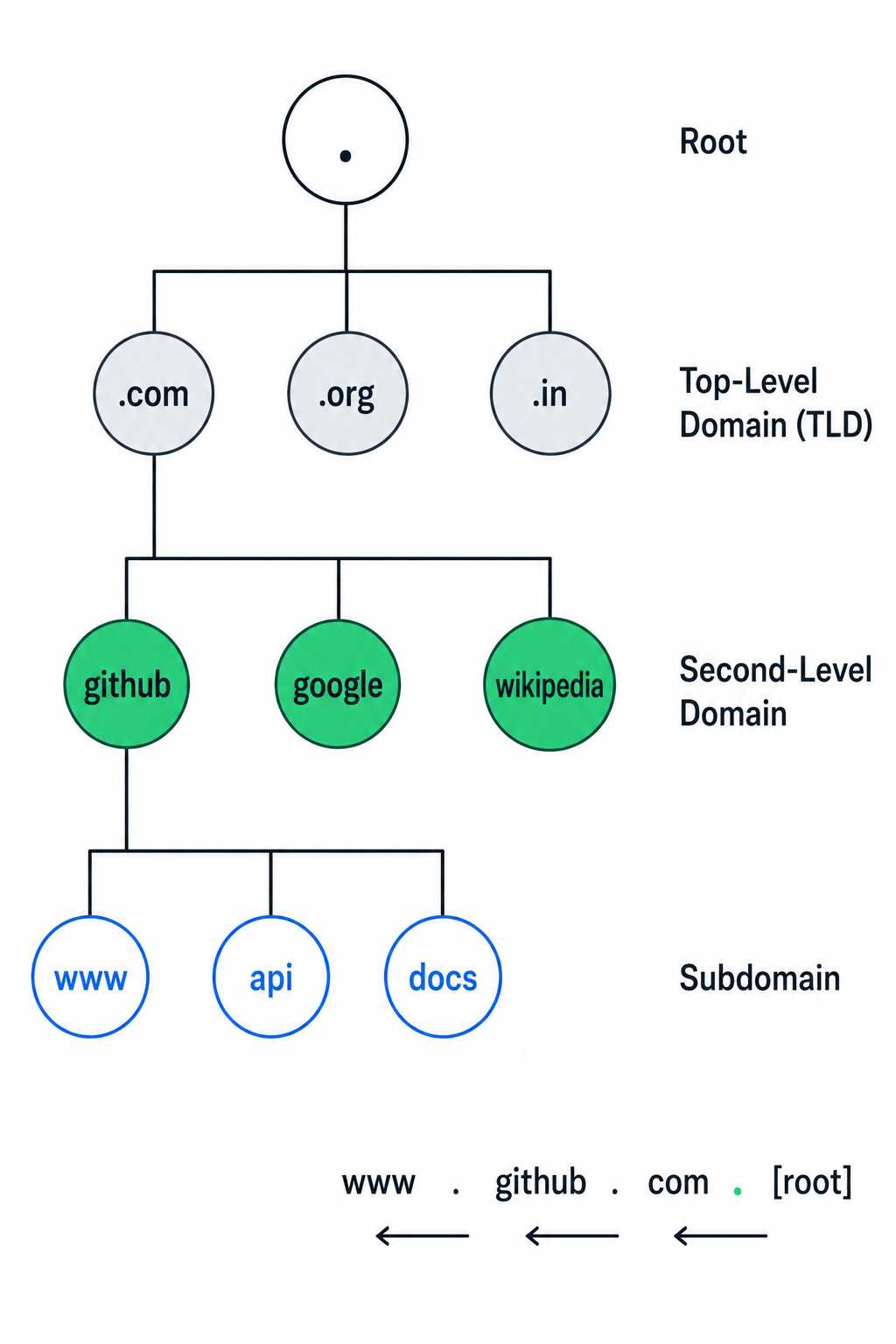
.                       <-- Root (the invisible dot at the very end)
└── com                 <-- Top-Level Domain (TLD)
    └── github          <-- Second-Level Domain (SLD)
        └── www         <-- Subdomain
Each level of this hierarchy is owned and managed by a different organisation:
- The root (
.) is managed by IANA (Internet Assigned Numbers Authority). There are 13 root server clusters, labeled A through M, distributed across hundreds of physical locations worldwide. - Top-Level Domains (TLDs) like
.com,.org,.net, and country codes like.ukor.inare managed by registry operators. Verisign manages.com, for example. - Second-level domains like
githubingithub.comare registered by individuals and companies through domain registrars (Namecheap, GoDaddy, Cloudflare Registrar, etc.). - Subdomains like
www,api,mail,blogare created by the domain owner themselves in their DNS provider's control panel.
That trailing dot in
github.com.represents the root of the DNS hierarchy. Your browser adds it automatically before sending a DNS query. It is always there even when invisible.
The Four Key Players in a DNS Query
Before walking through a full DNS lookup, you need to understand the four main participants.
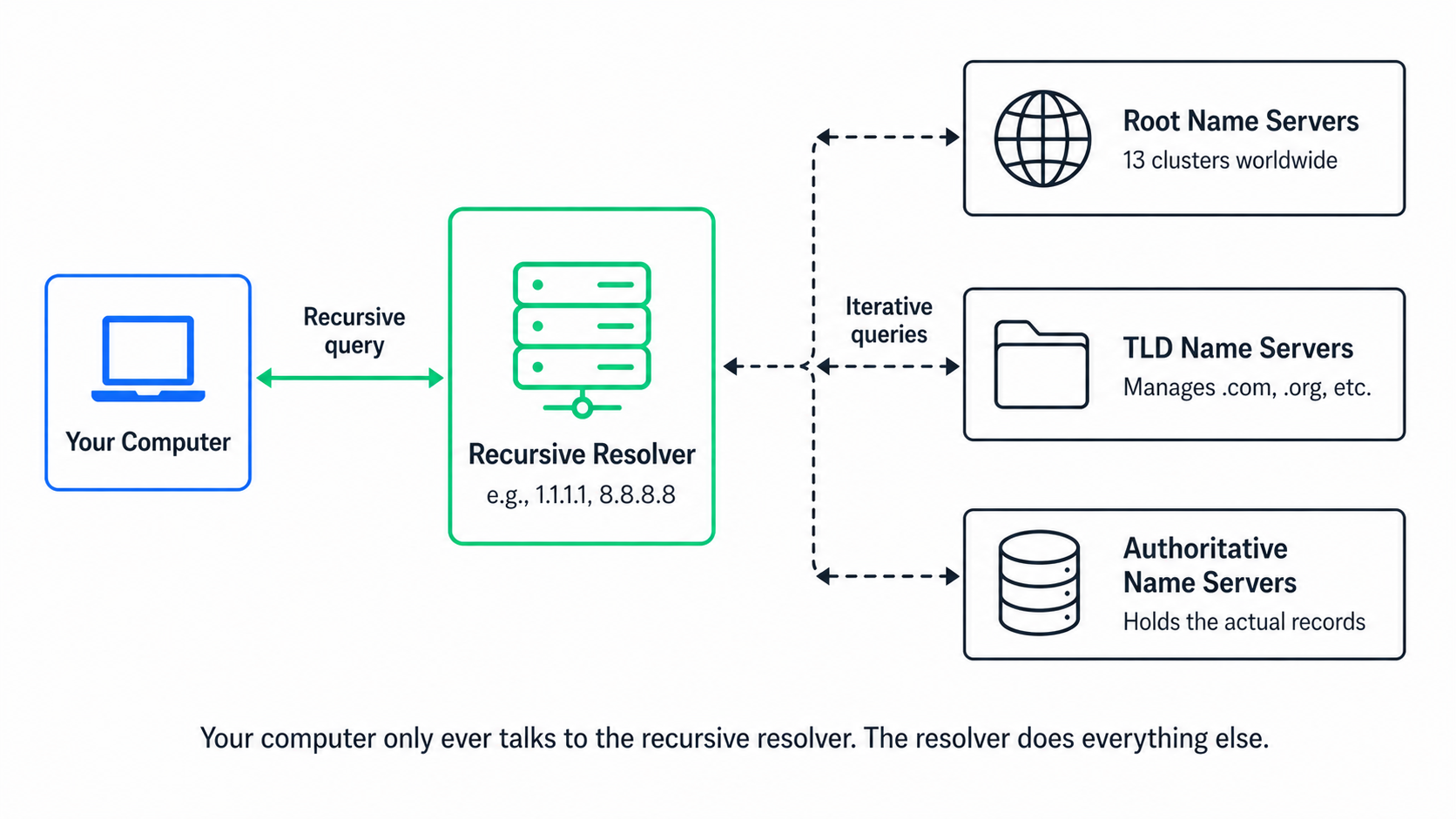
The DNS Recursor (Recursive Resolver)
This is the first server your computer contacts when it needs to resolve a domain name. It is usually provided by your ISP, or by a public DNS service like Google's 8.8.8.8 or Cloudflare's 1.1.1.1.
The recursive resolver does the heavy lifting on your behalf. It contacts multiple servers, follows referrals, and eventually returns the final answer to your computer. Think of it as a librarian who goes through the entire library to find the book you need, rather than making you search yourself.
Root Name Servers
There are 13 sets of root name servers (A through M). They do not know the IP address for your domain directly, but they know which servers are responsible for each TLD. They're like the index of a library that tells you which floor and section to visit.
The root server addresses are hardcoded into every DNS resolver software. They are the starting point for every uncached query.
TLD Name Servers
These servers know which authoritative name servers are responsible for specific domains within their TLD. The .com TLD server, for example, knows which name servers are authoritative for github.com because GitHub's registrar told it when the domain was registered.
Authoritative Name Servers
This is the server that actually holds the DNS records for a domain. It is the final authority and gives the definitive answer: "yes, github.com is at this IP address." When you add DNS records in Cloudflare, Route 53, or any other DNS provider, you are updating the authoritative name server for your domain.
How a DNS Lookup Actually Works
Let's trace exactly what happens when you type www.github.com into your browser and press Enter.
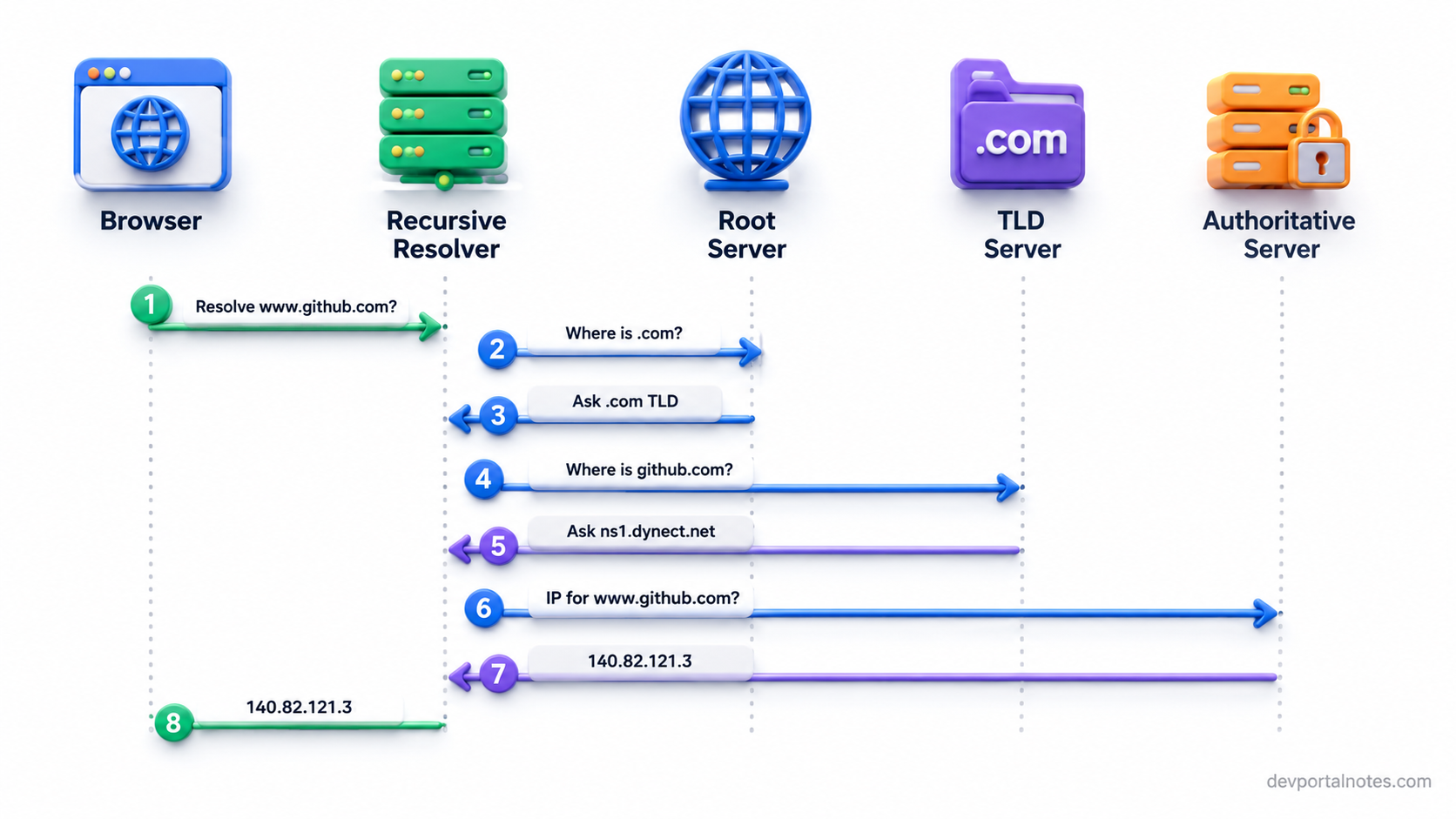
Your Browser
    │
    ├─ Check 1: Browser DNS cache
    │   (Did we look this up recently? Use the cached answer if TTL hasn't expired.)
    │
    ├─ Check 2: OS DNS cache + hosts file
    │   (Does /etc/hosts have an entry? Did the OS already cache this?)
    │
    └─ Query: Ask the Recursive Resolver (e.g., 1.1.1.1)
               │
               ├─ Check 3: Resolver's own cache
               │   (Has this resolver seen this query recently?)
               │
               ├─ Ask a Root Name Server
               │   "I need to resolve github.com. Help?"
               │   Root: "I don't know the IP, but here are the .com TLD servers."
               │
               ├─ Ask the .com TLD Name Server
               │   "Who is authoritative for github.com?"
               │   TLD: "Go ask ns1.p16.dynect.net"
               │
               └─ Ask github.com's Authoritative Name Server
                   "What is the IP for www.github.com?"
                   Auth: "It is 140.82.121.3" (A record)
                   │
                   └─ Resolver returns 140.82.121.3 to your browser
                       │
                       └─ Browser connects to 140.82.121.3 over TCP/HTTPS
                           Page loads.
The entire process typically takes between 10 and 100 milliseconds. After this first lookup, the answer is cached at multiple levels, so future queries skip most of these steps and return almost instantly.
Let's look at each stage more carefully.
Checking Local Caches First
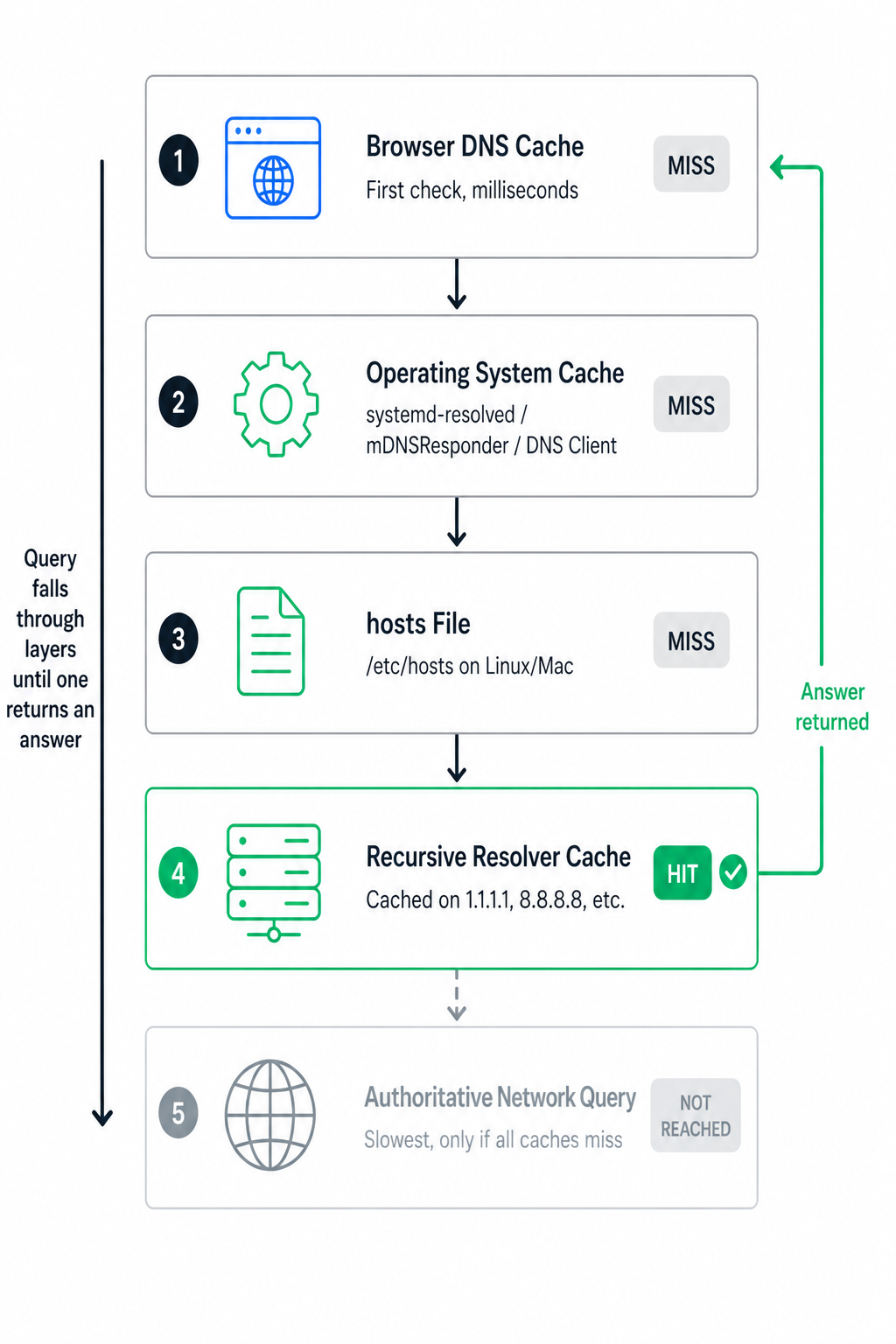
Before any network request is made, your system checks several local caches in sequence:
Browser cache: Chrome, Firefox, and other browsers maintain their own DNS cache. You can inspect Chrome's DNS cache at chrome://net-internals/#dns.
OS DNS cache: Your operating system caches DNS results separately. On Linux, this is typically handled by systemd-resolved. On macOS, by mDNSResponder. On Windows, by the DNS Client service.
The hosts file: Before querying any DNS server, your OS reads a local text file:
- Linux/Mac:
/etc/hosts - Windows:
C:\Windows\System32\drivers\etc\hosts
This file lets you manually map domain names to IP addresses. It predates DNS entirely and takes precedence over any DNS lookup for the entries it contains.
# /etc/hosts example
127.0.0.1     localhost
::1           localhost

# Point a custom local domain to your dev machine
192.168.1.10  myapp.local
192.168.1.10  api.myapp.local

# Block a domain by pointing it to nothing
127.0.0.1     ads.annoying-tracker.com
Contacting the Recursive Resolver
If no local cache has the answer, your computer sends a DNS query to the recursive resolver configured on your system (received via DHCP when you connected to the network, or set manually).
The resolver is the workhorse of the entire system. It contacts all the other servers on your behalf and returns a final answer. Your computer never talks to root servers or authoritative servers directly.
The Resolution Chain
If the resolver's own cache is also empty, it starts the chain of iterative queries:
Asking a root server: The resolver contacts one of the 13 root server clusters and asks about www.github.com. The root server does not know the answer, but it knows who manages .com. It responds with a list of .com TLD name server addresses.
Asking the TLD server: The resolver asks the .com TLD server who is authoritative for github.com. The TLD server looks up its records and responds: "The authoritative name servers for github.com are ns1.p16.dynect.net, ns2.p16.dynect.net, etc. Go ask them."
Asking the authoritative server: The resolver contacts GitHub's authoritative name server and asks for the A record for www.github.com. The authoritative server has the actual DNS records and responds with the IP address.
The resolver caches this answer (for the duration of the TTL, covered below) and returns it to your computer. Your browser then opens a TCP connection to that IP and loads the page.
DNS Record Types: The Different Kinds of Answers
DNS is not just about IP addresses. There are many types of DNS records, each serving a different purpose. All of them are stored on authoritative name servers.
| Record Type | Purpose | Example Value |
|---|---|---|
A | Maps a hostname to an IPv4 address | 140.82.121.3 |
AAAA | Maps a hostname to an IPv6 address | 2606:50c0:8000::153 |
CNAME | Alias: points one name to another name | github.com. |
MX | Specifies mail servers for a domain | 10 aspmx.l.google.com. |
TXT | Arbitrary text (SPF, DKIM, site verification) | "v=spf1 include:_spf.google.com ~all" |
NS | Delegates a zone to authoritative name servers | ns1.p16.dynect.net. |
SOA | Start of Authority: metadata about the zone | Serial, refresh, retry times |
PTR | Reverse lookup: IP address to hostname | github.com. |
SRV | Service location: host and port for a service | 0 5 443 server.example.com. |
CAA | Which Certificate Authorities can issue TLS certs | "0 issue letsencrypt.org" |
Let's walk through the most important ones.
A and AAAA Records
These are the most fundamental record types. An A record maps a domain to an IPv4 address. An AAAA record maps to an IPv6 address.
; Format: name  TTL  class  type  value
github.com.     60   IN     A     140.82.121.3
github.com.     60   IN     AAAA  2606:50c0:8000::153
A single domain can have multiple A records, each pointing to a different IP address. This is a simple form of load balancing: resolvers rotate through them, distributing traffic across multiple servers.
; Multiple A records for round-robin load balancing
app.example.com.  60  IN  A  10.0.0.1
app.example.com.  60  IN  A  10.0.0.2
app.example.com.  60  IN  A  10.0.0.3
CNAME Records
A CNAME (Canonical Name) record creates an alias from one domain name to another. Instead of pointing to an IP address, it points to a different domain name.
www.github.com.    3600  IN  CNAME  github.com.
blog.example.com.  3600  IN  CNAME  mysite.wordpress.com.
When a resolver encounters a CNAME, it follows the chain: "I was looking for www.github.com, but that's a CNAME pointing to github.com. Now let me look up github.com."
Important CNAME limitations:
- You cannot put a CNAME on a bare/apex domain (
example.com) if that domain has any other records. An apex domain with both a CNAME and an MX record would be invalid. - CNAMEs can only point to other domain names, never to IP addresses directly.
- Long CNAME chains (pointing to another CNAME, pointing to another) add extra lookup steps.
Many DNS providers offer "ALIAS" or "ANAME" records as a solution to the apex domain problem. They behave like CNAMEs but can sit at the root. Under the hood, the provider resolves the target and returns its IP directly.
MX Records
MX (Mail Exchanger) records tell email servers where to deliver mail for a domain. Each record has a priority value: lower number means higher priority. If the highest-priority server is unavailable, the next one is tried.
; Priority  Mail server
github.com.  3600  IN  MX  1   aspmx.l.google.com.
github.com.  3600  IN  MX  5   alt1.aspmx.l.google.com.
github.com.  3600  IN  MX  10  alt2.aspmx.l.google.com.
When someone sends an email to user@github.com, their mail server looks up the MX records for github.com and delivers the message to the highest-priority server that responds.
TXT Records
TXT records store arbitrary text. They were originally for human-readable notes, but today they are critical for email authentication and domain ownership verification.
Common uses:
SPF (Sender Policy Framework): Declares which servers are authorised to send email for your domain. Receiving mail servers check this before accepting messages.
DKIM (DomainKeys Identified Mail): Publishes a public key used to verify that email signatures match, proving the email was not forged or altered.
DMARC: Tells receiving servers what to do with messages that fail SPF or DKIM checks (reject them, quarantine them, or just report them).
Domain verification: Services like Google Search Console ask you to add a TXT record to prove domain ownership before granting access.
; SPF record
example.com.  IN  TXT  "v=spf1 include:_spf.google.com include:sendgrid.net ~all"

; DKIM public key (partial for readability)
google._domainkey.example.com.  IN  TXT  "v=DKIM1; k=rsa; p=MIGfMA0GCSq..."

; DMARC policy
_dmarc.example.com.  IN  TXT  "v=DMARC1; p=reject; rua=mailto:dmarc@example.com"

; Google site verification
example.com.  IN  TXT  "google-site-verification=abc123xyz..."
NS Records
NS (Name Server) records declare which servers are authoritative for a domain. These are configured at your domain registrar and are what the TLD servers use to point resolvers toward your DNS provider.
github.com.  IN  NS  ns1.p16.dynect.net.
github.com.  IN  NS  ns2.p16.dynect.net.
github.com.  IN  NS  ns3.p16.dynect.net.
github.com.  IN  NS  ns4.p16.dynect.net.
Domains always have at least two NS records for redundancy. If one authoritative name server is down, the others continue serving queries.
PTR Records
PTR records are the reverse of A records. Instead of mapping a name to an IP, they map an IP address back to a hostname. They live in a special domain called in-addr.arpa.
; Forward lookup
github.com.                   A    140.82.121.3

; Reverse lookup (note the IP is reversed)
3.121.82.140.in-addr.arpa.    PTR  github.com.
PTR records are particularly important for email. Mail servers frequently check that the sending IP address has a matching PTR record pointing back to a legitimate hostname. Missing or mismatched PTR records are a common cause of email being flagged as spam.
SOA Record
Every DNS zone has exactly one SOA (Start of Authority) record. It contains metadata that controls how the zone behaves.
github.com.  IN  SOA  ns1.p16.dynect.net. admin.github.com. (
    2024040101  ; Serial: incremented whenever the zone changes
    3600        ; Refresh: how often secondary servers check for updates (seconds)
    900         ; Retry: wait before retrying after a failed refresh
    604800      ; Expire: how long secondaries keep data if primary is unreachable
    300         ; Minimum TTL: default for negative caching (NXDOMAIN responses)
)
TTL: How DNS Caching Works
Every DNS record has a TTL (Time to Live), measured in seconds. This tells resolvers and clients how long they are allowed to cache the record before fetching a fresh copy.
; TTL of 300 seconds (5 minutes)
github.com.  300  IN  A  140.82.121.3
             ^^^
             This is the TTL
When a resolver caches this record, it starts a countdown timer. After 300 seconds, it discards the cached answer and fetches a fresh one on the next query.
Lower TTL (60 to 300 seconds):
- DNS changes propagate faster across the internet
- Higher query load on your DNS servers (cache expires more often)
- Useful before making infrastructure changes
Higher TTL (3600 to 86400 seconds):
- Fewer queries to your DNS servers
- Faster responses for end users (more cache hits)
- But changes are slow to propagate: old values persist until every cache expires
When you change a DNS record, the internet does not instantly update. Old cached values continue serving the previous answer until their TTL expires. This is what people call "DNS propagation time."
Before making a major DNS change (like migrating to a new server), lower your TTL to 300 seconds at least a day in advance. Once your change is live and confirmed working, raise it back to a higher value.
Recursive vs. Iterative Queries
DNS supports two different querying modes that work at different levels of the system.
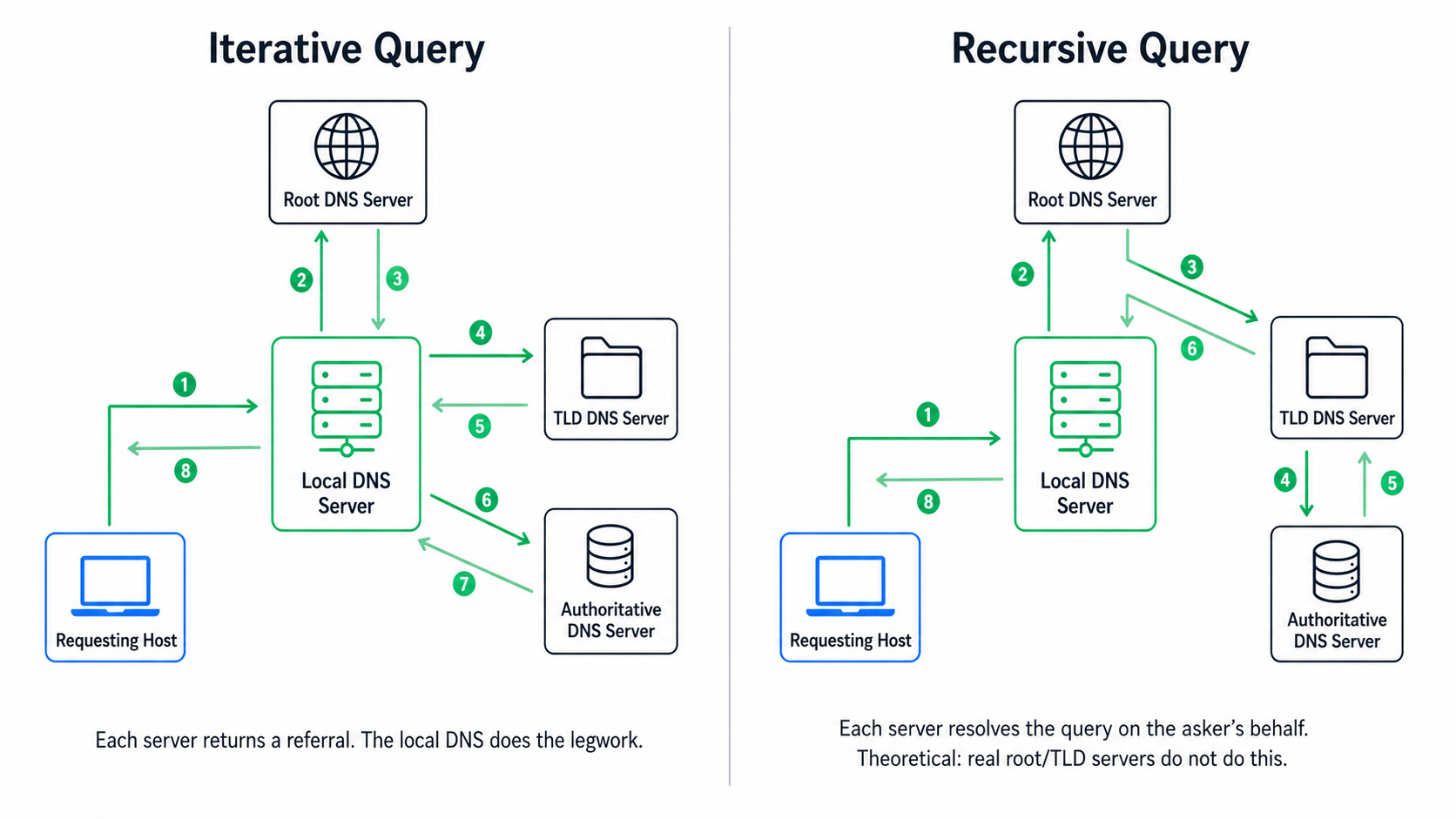
Recursive Queries
In a recursive query, you ask for a complete final answer and the server does all the work for you. Your computer sends recursive queries to its configured resolver. The resolver takes full responsibility for finding the answer, however many steps that requires.
Iterative Queries
In an iterative query, the server you ask does not go fetch the answer for you. Instead, it gives you a referral: "I don't know, but try asking this other server." You do the next step yourself.
When your recursive resolver talks to root servers and TLD servers, it uses iterative queries. The root server does not resolve github.com for the resolver. It just says "try the .com TLD servers" and the resolver makes that next request itself.
Recursive (your computer to resolver):
  Computer:  "What is the IP for github.com? Find out completely."
  Resolver:  "140.82.121.3" (does all internal work, returns final answer)

Iterative (resolver talking to root/TLD/authoritative):
  Resolver:  "What is the IP for github.com?"
  Root:      "I don't know. Try ns.verisign-tld.com for .com"

  Resolver:  "What is the IP for github.com?"
  TLD:       "I don't know. Try ns1.p16.dynect.net for github.com"

  Resolver:  "What is the IP for www.github.com?"
  Auth:      "It's 140.82.121.3"

  Resolver returns 140.82.121.3 to your computer.
How Your Computer Knows Which Resolver to Use
When you connect to a network, your device receives DNS resolver addresses via DHCP alongside your IP address, default gateway, and subnet mask. Your ISP's resolver is typically assigned this way.
You can override this in your OS network settings or on your router. Popular public resolvers:
| Provider | IPv4 Primary | IPv4 Secondary | Characteristic |
|---|---|---|---|
| Cloudflare | 1.1.1.1 | 1.0.0.1 | Privacy-focused, consistently fast |
8.8.8.8 | 8.8.4.4 | Reliable, widely trusted | |
| Quad9 | 9.9.9.9 | 149.112.112.112 | Blocks known malicious domains |
| OpenDNS | 208.67.222.222 | 208.67.220.220 | Customisable, parental controls |
To check which resolver your system is currently using:
# Linux (most systems)
cat /etc/resolv.conf
# nameserver 1.1.1.1
# nameserver 8.8.8.8

# macOS
scutil --dns | grep nameserver

# Windows
ipconfig /all | findstr "DNS Servers"
The hosts File: DNS Before DNS
The /etc/hosts file (or C:\Windows\System32\drivers\etc\hosts on Windows) is a simple text file that maps hostnames to IP addresses. It is read before any DNS query is made, so entries in this file always override DNS.
# /etc/hosts
127.0.0.1     localhost
::1           localhost ip6-localhost

# Local development: custom domain pointing to your machine
127.0.0.1     myapp.local
127.0.0.1     api.myapp.local
127.0.0.1     admin.myapp.local

# Override a real domain for testing (dangerous: use carefully)
192.168.1.50  staging.example.com
The hosts file is useful for local development (no need for a local DNS server), testing staging environments, and blocking domains by pointing them to 127.0.0.1 (the machine itself, which has no web server on the expected port).
DNS Tools Every Developer Should Know
dig
dig (Domain Information Groper) is the most powerful DNS debugging tool. It shows you exactly what DNS servers return, including raw record data and query timing.
# Basic A record lookup
dig github.com

# Query a specific record type
dig github.com MX
dig github.com TXT
dig github.com NS
dig github.com AAAA

# Query a specific DNS server directly
dig @1.1.1.1 github.com

# See the full resolution chain (root, TLD, authoritative)
dig +trace github.com

# Short output: just the answer
dig +short github.com

# Reverse lookup (IP to hostname)
dig -x 140.82.121.3
A typical dig response:
; <<>> DiG 9.18.0 <<>> github.com
;; QUESTION SECTION:
;github.com.                  IN  A

;; ANSWER SECTION:
github.com.        60  IN  A  140.82.121.3

;; Query time: 12 msec
;; SERVER: 1.1.1.1#53(1.1.1.1)
;; WHEN: Sun Apr 27 10:30:00 UTC 2026
;; MSG SIZE rcvd: 55
The +trace flag is the most valuable for debugging. It walks through every step of the resolution chain from root to authoritative:
dig +trace www.example.com

# Output shows (abbreviated):
.               518400  IN  NS  a.root-servers.net.
# (13 root server entries)

com.            172800  IN  NS  a.gtld-servers.net.
# (TLD servers for .com)

example.com.    172800  IN  NS  a.iana-servers.net.
# (Authoritative servers for example.com)

www.example.com.  86400  IN  A  93.184.216.34
# (Final answer from the authoritative server)
nslookup
nslookup is older but available on all platforms, including Windows, where dig is not installed by default.
# Basic lookup
nslookup github.com

# Query a specific type
nslookup -type=MX github.com
nslookup -type=TXT github.com

# Query a specific server
nslookup github.com 8.8.8.8
host
host is a simple, readable alternative to dig for quick lookups:
host github.com
# github.com has address 140.82.121.3
# github.com has IPv6 address 2606:50c0:8000::153
# github.com mail is handled by 1 aspmx.l.google.com.

host -t TXT github.com
Flushing Your DNS Cache
When you change a DNS record and need to see the new value immediately without waiting for TTL to expire, flush your local cache:
# Linux (systemd-resolved)
sudo resolvectl flush-caches
# or
sudo systemd-resolve --flush-caches

# macOS
sudo dscacheutil -flushcache && sudo killall -HUP mDNSResponder

# Windows
ipconfig /flushdns
After flushing, the next DNS query for that domain will go out to the network rather than returning a cached response.
DNS in Practice: Real-World Scenarios
Local Development with Custom Domains
The hosts file is the fastest way to set up a local domain for development:
# /etc/hosts
127.0.0.1   myapp.local
127.0.0.1   api.myapp.local
127.0.0.1   auth.myapp.local
Now http://myapp.local resolves to your machine without any DNS server. Your browser, curl, and all other tools will use this mapping automatically.
Testing DNS Changes Before They Propagate
After making a DNS change, you can verify it was saved correctly by querying the authoritative server directly, before the change has propagated to public resolvers:
# Find the authoritative name server for your domain
dig NS example.com +short
# Returns: ns1.your-dns-provider.com.

# Now query that server directly for the record you just changed
dig @ns1.your-dns-provider.com example.com A
If this returns the new value, your change was saved. Public resolvers will see it after the old TTL expires.
Setting Up DNS for a New Domain
When you register a domain and want to use Cloudflare for DNS:
- Add the domain in Cloudflare's dashboard. Cloudflare scans your current DNS records.
- Cloudflare gives you two NS records (like
ns1.cloudflare.comandns2.cloudflare.com). - Log in to your domain registrar and update the NS records to Cloudflare's values.
- DNS propagation begins: resolver caches start expiring worldwide, gradually switching to Cloudflare as the authority.
During propagation (which takes a few hours to complete globally), some users see old DNS data and others see new. This is normal and unavoidable due to TTL-based caching.
DNS Load Balancing
DNS can distribute traffic across multiple servers without a dedicated hardware load balancer.
Round-robin DNS: Give one domain multiple A records. Resolvers rotate through them, spreading queries across servers.
; Traffic distributed across three servers
app.example.com.  60  IN  A  10.0.0.1
app.example.com.  60  IN  A  10.0.0.2
app.example.com.  60  IN  A  10.0.0.3
Weighted routing: With providers like AWS Route 53 or Cloudflare Load Balancing, you can send a specific percentage of traffic to each server. For example: 90% to the primary server, 10% to a canary.
Geo-routing: Return different A records based on the user's geographic location. Users in Europe get your European server. Users in Asia get your Asia-Pacific server. This reduces latency without any application-level changes.
Failover: Configure health checks alongside DNS. When a server fails a health check, the DNS provider automatically stops returning its IP address. Traffic shifts to healthy servers within the TTL window.
Subdomain Delegation
You can delegate a subdomain to a completely different set of authoritative name servers. This is used by large organisations to give different teams independent control over their DNS zones.
; Main company domain at the primary DNS provider
example.com.      NS  ns1.main-dns.com.

; dev.example.com delegated to the dev team's DNS provider
dev.example.com.  NS  ns1.dev-team-dns.com.
dev.example.com.  NS  ns2.dev-team-dns.com.
After this delegation, the dev team controls all records under dev.example.com completely independently. They can add, change, or delete records without touching the main domain's DNS.
DNS Security: What Can Go Wrong
DNS was designed in 1983, when the internet was a cooperative research network and security threats were not a primary concern. Several attack types exploit the trust model that DNS was built on.
DNS Cache Poisoning (Spoofing)
An attacker floods a recursive resolver with forged DNS responses. If a forged response arrives before the legitimate one, the resolver caches the fake record. All users of that resolver then get the wrong IP address for the target domain, potentially being redirected to a malicious server without any visible warning.
The classic exploit sends thousands of forged responses while the resolver is still waiting for a legitimate reply, gambling on one of them matching the query's transaction ID before the real response arrives.
DNS Hijacking
An attacker takes control of a router, resolver, or even the domain's registrar account and changes DNS records at the source. Unlike cache poisoning (which injects false data into caches), hijacking modifies the actual authoritative data. Victims are redirected to fake sites at the DNS level, making the attack very difficult for end users to detect.
DNS Amplification
Attackers exploit publicly open DNS resolvers to amplify DDoS attacks. They send small DNS queries (30 to 40 bytes) with the victim's IP address forged as the source. The resolver sends its large response (up to 3,000 bytes) to the victim. The query-to-response size ratio can be 50 to 100 times, dramatically amplifying the attack bandwidth.
DNS Tunneling / Exfiltration
Because DNS traffic almost never gets blocked by firewalls, attackers use it as a covert data channel. Sensitive data is encoded into DNS query names, which are sent to an authoritative server the attacker controls. The attacker's server logs every incoming query name and decodes the exfiltrated data.
; Data encoded as base64 in a subdomain label
dGhpcyBpcyBzdG9sZW4gZGF0YQ.attacker-controlled.com.
Detecting this requires monitoring DNS query volumes and looking for unusually long or high-entropy subdomains.
DNSSEC: Adding Cryptographic Trust to DNS
DNSSEC (DNS Security Extensions) addresses the core vulnerability in plain DNS: you have no way to verify that a response actually came from the authoritative server and was not modified in transit.
DNSSEC adds digital signatures to DNS records. Resolvers that support DNSSEC can verify the full chain of signatures from the root zone down to the specific record they queried.
Root zone signs the TLD zone's key
        ↓
TLD zone signs the domain's zone key (DS record)
        ↓
Domain's zone key signs individual records (RRSIG records)
        ↓
Resolver validates the entire chain, top to bottom
        ↓
If any signature is invalid or missing, the query fails
The trust anchor for this entire chain is the root zone's key. ICANN publishes it, and it is hardcoded into resolver software. A response cannot be forged without breaking the cryptographic chain.
# Check if a domain has DNSSEC configured
dig github.com DNSKEY
dig github.com DS

# Verify the DNSSEC chain with a validating resolver
dig +dnssec github.com @1.1.1.1
DNSSEC has one important limitation: it proves records were not tampered with in transit, but it does not hide what you are looking up. The question "what is the IP for github.com?" is still plaintext on the wire.
DNS over HTTPS and DNS over TLS
Standard DNS queries travel as plaintext over UDP port 53. Anyone between you and the resolver (your ISP, the coffee shop WiFi operator, or a compromised router) can see exactly which domains you are querying. This is a significant privacy issue.
DNS over TLS (DoT) encrypts DNS queries using TLS, running on port 853. It provides confidentiality between you and the resolver, preventing passive observers from seeing your query names.
DNS over HTTPS (DoH) wraps DNS queries inside regular HTTPS traffic on port 443. Because it looks identical to normal web traffic, network observers cannot selectively block or monitor DNS. Modern browsers (Chrome, Firefox, Edge) support DoH natively and can be configured to use it.
Both protect against passive eavesdropping on the network between you and the resolver. Neither hides your queries from the resolver itself: Cloudflare, Google, or whichever provider you use still sees every domain you look up.
# Query using DoH with curl
curl -H 'accept: application/dns-json' \
     'https://cloudflare-dns.com/dns-query?name=github.com&type=A'

# Query using DoH with dig (newer versions)
dig @https://cloudflare-dns.com/dns-query github.com
Common DNS Problems and How to Debug Them
NXDOMAIN: Domain Does Not Exist
dig nonexistent.example.com
# status: NXDOMAIN
The authoritative server says this domain definitely does not exist. Common causes: typo in the domain name, the DNS record has not been created yet, or the domain has expired.
SERVFAIL: Server Failure
dig example.com
# status: SERVFAIL
The resolver encountered an error while trying to resolve the query. Frequent causes: DNSSEC validation failure (the signature does not match), misconfigured authoritative servers, or a broken NS delegation (the TLD points to a name server that does not respond).
Stale Cache: Seeing Old DNS After a Change
If you made a DNS change but the new value is not showing up:
# Check what different resolvers currently have cached
dig @8.8.8.8 example.com    # Google's resolver
dig @1.1.1.1 example.com    # Cloudflare's resolver
dig @9.9.9.9 example.com    # Quad9

# Check what the authoritative server says directly (bypasses all caches)
dig NS example.com +short
# Returns the authoritative NS, e.g.: ns1.your-provider.com.
dig @ns1.your-provider.com example.com A
If the authoritative server returns the new value but public resolvers still return the old one, you are simply waiting for the old TTL to expire across the globe. You cannot speed this up for external resolvers, but you can flush your own local cache.
Slow DNS Resolution
Run a trace with timing to find the slow step:
dig +trace +stats example.com
Look at the Query time line after each step. If the authoritative query is slow, the problem is with your DNS provider's infrastructure. If all steps are slow, try using a geographically closer resolver.
Email Delivery Problems
# Check that MX records exist
dig example.com MX

# Verify SPF record is present
dig example.com TXT | grep spf

# Check PTR record for your mail server's IP
dig -x YOUR_MAIL_SERVER_IP
Missing PTR records are one of the most common causes of email being flagged as spam or rejected outright.
A Quick Reference: DNS Ports and Protocols
| Protocol | Port | Notes |
|---|---|---|
| DNS (UDP) | 53 | Standard queries (fast, no connection overhead) |
| DNS (TCP) | 53 | Large responses over 512 bytes, zone transfers |
| DNS over TLS (DoT) | 853 | Encrypted DNS |
| DNS over HTTPS (DoH) | 443 | Encrypted DNS via HTTPS (looks like web traffic) |
DNS uses UDP by default for speed (no handshake, no connection state). TCP is used when a response is too large for a single UDP packet, and for zone transfers (copying an entire DNS zone from a primary to a secondary name server).
Summary
DNS is one of the most fundamental pieces of infrastructure on the internet and almost completely invisible when it is working correctly.
Here is what you now know:
- DNS translates domain names to IP addresses through a global, distributed, hierarchical system.
- A full DNS lookup flows through four types of servers: recursive resolver, root name servers, TLD name servers, and authoritative name servers.
- DNS has many record types:
AandAAAAfor IP addresses,CNAMEfor aliases,MXfor email routing,TXTfor email authentication and verification,NSfor delegation,PTRfor reverse lookups, and more. - TTL controls how long records are cached. Lower TTL means faster propagation but more load on your DNS servers.
dig +traceis your best debugging tool. It shows the full resolution chain from root to authoritative server, with query times at each step.- DNS was not designed with security in mind. DNSSEC adds cryptographic integrity. DoH and DoT add privacy against eavesdropping.
- The hosts file is simple, powerful, and useful for local development. It always takes precedence over DNS.